Home

A trackpad-first infinite canvas Wayland compositor.



Primary repository: GitHub · Mirror: Codeberg
Traditional window managers arrange windows to fit your screen. Stacking compositors do so by piling windows on top of each other; tiling compositors do so by squeezing them to fit and utilizing workspaces.
driftwm is an infinite-canvas compositor: windows live at their native size on an infinite 2D canvas, and your display is a camera viewing it. When two windows come close, they snap together, forming implicit groups that can be moved, resized, and viewed together. No tiling, no workspaces, window overlaps happen only on purpose.
Designed with laptops in mind: navigation and window management are trackpad-first; the infinite canvas makes the most of a small screen.
Built on smithay. Inspired by vxwm; borrows implementation details from niri.
Warning
This is experimental software, primarily built with AI.
Features
Pan & zoom
Infinite 2D canvas with viewport panning, zoom, and scroll momentum. A quick flick carries the viewport smoothly until friction stops it.
Pan & zoom bindings
| Input | Action | Context |
|---|---|---|
| 3-finger swipe | Pan viewport | anywhere |
| Trackpad scroll | Pan viewport | on-canvas |
Mod + LMB drag | Pan viewport | anywhere |
Mod+Ctrl + arrow | Pan viewport | — |
| 2-finger pinch | Zoom | on-canvas |
| 3-finger pinch | Zoom | anywhere |
| Mouse wheel | Zoom | on-canvas |
Mod + scroll | Zoom at cursor | anywhere |
Mod+= / Mod+- | Zoom in / out | — |
Mod+0 / Mod+Z | Reset zoom to 1.0 | — |
Window navigation
Jump to the nearest window in any direction. MRU cycling (Alt-Tab) with
hold-to-commit. Zoom-to-fit shows all windows at once. Configurable anchors
act as navigation targets for directional jumps even with no window there —
useful for areas with pinned widgets. Bookmarks: named canvas
spots the camera jumps straight to.
Navigation bindings
| Input | Action |
|---|---|
| 4-finger swipe | Jump to nearest window (natural direction) |
Mod+Ctrl + LMB drag | Jump to nearest window (natural direction) |
Mod + arrow | Jump to nearest window in direction |
Alt-Tab / Alt-Shift-Tab | Cycle windows (MRU) |
4-finger pinch in / Mod+W | Zoom-to-fit (overview) |
4-finger pinch out / Mod+A | Home toggle (origin and back) |
4-finger hold / Mod+C | Center focused window |
Mod+1-4 | Jump to bookmarked canvas position |
Mod+Shift+1-4 | Save the current position as that bookmark |
All 4-finger navigation gestures also work as Mod + 3-finger for smaller
trackpads.
Snapping
Move window with 3-finger doubletap-swipe or Alt + drag. Resize with Alt + 3-finger swipe. Snapping kicks in as edges approach each other. Drag past the viewport edge and the canvas auto-pans.
Snapped windows form a cluster. Neighbors stay visible at your view’s edge for spatial context, and Shift + any move/resize/fit action acts on the whole cluster. Shuffle a layout in one drag, resize a row of panes proportionally, or scope an overview to just the cluster (Mod+Shift+W). No explicit grouping to manage.
Tip
While dragging a window, keyboard shortcuts still work. Use
Mod+1-4to jump to a bookmark orMod+Ato go home — your held window comes with you.
Fit-window (Mod+M) is the maximize analogue — centers the viewport, resets
zoom to 1.0, and resizes the window to fill the screen. Toggle again to
restore. Fullscreen (Mod+F) fills the screen with the focused window until any
canvas action — launching an app, navigating — exits it.
Snapping & window bindings
| Input | Action |
|---|---|
| 3-finger doubletap-swipe | Move window |
Alt + LMB drag | Move window |
Alt+Shift + LMB drag | Move snapped windows |
Alt + 3-finger swipe | Resize window |
Alt+Shift + 3-finger swipe | Resize snapped window |
Alt + RMB drag | Resize window |
Alt + MMB click / Mod+M | Fit window (maximize/restore) |
Alt+Shift + MMB click / Mod+Shift+M | Fit snapped window |
Mod + 4-finger pinch in / Mod+Shift+W | Zoom-to-fit snapped windows |
Alt + 2-finger pinch in/out | Fit window |
Alt + 3-finger pinch in/out | Toggle fullscreen |
Mod + MMB click / Mod+F | Toggle fullscreen |
Mod+Shift + arrow | Nudge window (default 20px) |
Touchscreen
Everything works by touch too: pan and zoom the canvas, jump between windows, and move or resize windows — even whole window groups — exactly as you would on a trackpad.
Touch gestures
| Input | Action | Context |
|---|---|---|
| 1-finger swipe | Pan viewport | on-canvas |
| 2-finger swipe | Pan viewport | on-canvas |
| 3-finger swipe | Pan viewport | anywhere |
| 2-finger pinch | Zoom | on-canvas |
| 3-finger pinch | Zoom | anywhere |
| 4-finger swipe | Jump to nearest window | anywhere |
| 4-finger pinch in / out | Zoom-to-fit / home toggle | anywhere |
| 3-finger tap | Center window | anywhere |
| 3-finger double-tap | Fit window | on-window |
| 3-finger doubletap-swipe | Move window (hold: cluster) | on-window |
| 3-finger hold-swipe | Resize window | on-window |
Infinite background
The background is part of the canvas — it scrolls and zooms with the viewport, not stuck to the screen.
Five modes:
default— the built-in dot grid, what you get with no configuration.shader— procedural GLSL, animated or static, optionally sampling an image viatexture. See docs/shaders.md to write your own. Bundled shaders live inextras/wallpapers/{static,animated,textured}/.tile— PNG/JPG (single texture, tiled infinitely), or a tiled pyramidal TIFF for gigapixel wallpapers. Setmirror_tile = trueto mirror-fold a non-seamless image so it tiles without seams (kaleidoscope look).wallpaper— single image scaled to cover the viewport, aspect-preserving (does not scroll/zoom) — a classic desktop wallpaper.none— no built-in background, so an externalwlr-layer-shellwallpaper daemon (swaybg,swww,mpvpaperfor live video) becomes the wallpaper instead.
[background]
type = "shader"
path = "~/.config/driftwm/bg.glsl"
# texture = "~/Pictures/img.jpg"  # if it's a texture-based shader

# Or: type = "tile",      path = "~/Pictures/tile.png"
# Or: type = "tile",      path = "~/Pictures/world.tif"   # pyramidal TIFF
# Or: type = "wallpaper", path = "~/Pictures/wallpaper.jpg"
# Or: type = "none"                                       # external wallpaper daemon (swaybg/mpvpaper/…)
Window rules
Match windows by app_id and/or title (glob patterns) and control position,
size, decorations, blur, opacity, key pass-through, and placement — fields
combine freely.
Two special placement modes: widget = true fixes a window to the canvas
(immovable, below normal windows, out of Alt-Tab — clocks, trays, and
layer-shell surfaces like waybar); pinned_to_screen = true fixes it to the
screen instead, so it ignores pan/zoom and floats above normal windows
(Picture-in-Picture, call toolbars) — toggleable live with Mod+T.
# Frosted-glass terminal
[[window_rules]]
app_id = "Alacritty"
opacity = 0.85
blur = true

# Desktop widget — pinned to the canvas, borderless
[[window_rules]]
app_id = "my-clock"
position = [50, 50]
widget = true
decoration = "none"
Tip
To find a window’s
app_idortitle, rundriftwm msg state— it lists every open window with its app ID, title, position, and size.
See docs/window-rules.md for more details.
Multi-monitor
Multiple monitors are independent viewports on the same canvas. An outline on each monitor shows where the other monitors’ viewports are. Cursor crosses between monitors freely; dragged windows teleport to the target viewport’s canvas position.
Multi-monitor bindings
| Input | Action |
|---|---|
Mod+Alt + arrow | Send window to adjacent output |
Panels, docks & taskbars
Layer shell surfaces (waybar, fuzzel, mako) work as expected. Docks and taskbars
see every window — click one and the viewport pans to it and centers it.
Bookmarks are exported as workspaces over ext-workspace-v1 — bars that support
it can list them and click to jump. It’s an export for tooling, not real
workspaces; driftwm is still one canvas.
Window suspend & session restore
Close a window and leave a placeholder behind instead of losing it:
suspend-window swaps the window for a compositor-drawn stand-in at the same
canvas spot — press Enter or click its name to bring the app right back, in
the same place. suspend_on_close does this automatically for every
client-initiated close. [session].restore_windows keeps your whole canvas saved
as you work and restores it (dormant, nothing auto-launches) on the next start,
with restore_camera bringing each output’s view back too.
See docs/session.md.
Everything else
- New window placement: in viewport center (default), under cursor, or snapped adjacent to whatever is in view
- Click-to-focus (default) or focus-follows-mouse (sloppy focus)
- Hot corners: any keybinding action fires when the cursor reaches a screen corner, configured per monitor
- Cursor edge-pan: push the pointer against a screen edge and the viewport pans, toggled with
Mod+E - Session lock and idle notification
- Screen capture: screencasting (OBS, Firefox, Discord) and screenshots, incl. built-in canvas/DPI capture
- 40+ Wayland protocols
- IPC control: script the compositor over a Unix socket with
driftwm msg(full command/flag reference: docs/cli.md)
Install
Arch Linux (AUR)
yay -S driftwm
or for latest main:
yay -S driftwm-git
NixOS / Nix
A flake.nix is included. To build:
nix build
For development (provides native deps, uses your system Rust):
nix develop
cargo build
cargo run
To enable driftwm on NixOS, you can import and use the provided NixOS module in your configuration.
Using Flakes:
# flake.nix
{
  inputs = {
    nixpkgs.url = "github:NixOS/nixpkgs/nixos-unstable";
    driftwm.url = "github:malbiruk/driftwm";
  };

  outputs = { self, nixpkgs, driftwm, ... }: {
    nixosConfigurations.myHost = nixpkgs.lib.nixosSystem {
      modules = [
        driftwm.nixosModules.default
        ./configuration.nix
      ];
    };
  };
}
Then, enable it in your configuration:
# configuration.nix
{
  programs.driftwm.enable = true;
}
Without flakes, import the flake’s output directly:
let
  driftwm-flake = builtins.getFlake "github:malbiruk/driftwm";
in
{
  imports = [ driftwm-flake.nixosModules.default ];
  programs.driftwm.enable = true;
}
programs.driftwm.package selects the package providing the compositor binary.
XWayland via xwayland-satellite is on by default; set
programs.xwayland.enable = false; to disable it.
Build from source
Requires Rust 1.88+ (edition 2024).
Install build dependencies:
Fedora:
sudo dnf install libseat-devel libdisplay-info-devel libinput-devel mesa-libgbm-devel libxkbcommon-devel
Ubuntu/Debian:
sudo apt install libseat-dev libdisplay-info-dev libinput-dev libudev-dev libgbm-dev libxkbcommon-dev libwayland-dev
Arch Linux:
sudo pacman -S libdisplay-info libinput seatd mesa libxkbcommon
Note
Ubuntu 24.04 ships Rust 1.75 which is too old. Install via rustup instead of
apt install rustc.
Then build and install:
git clone https://github.com/malbiruk/driftwm.git
cd driftwm
make build
sudo make install
To uninstall, run sudo make uninstall from the repository.
Offline build
Every release carries a driftwm-<version>-vendor.tar.xz asset holding all Rust
dependencies plus the .cargo/config.toml that points at them, for building
without network access:
sha256sum -c driftwm-<version>-vendor.tar.xz.sha256 &&
  tar xf driftwm-<version>.tar.gz &&
  tar xf driftwm-<version>-vendor.tar.xz -C driftwm-<version> &&
  cd driftwm-<version> &&
  cargo build --offline --locked --release &&
  sudo make install
Important
The vendor tarball has no top-level directory: it unpacks
vendor/and.cargo/into whatever directory it is extracted in, hence the-C. Don’t prunevendor/either — cargo checksums it againstCargo.lock, so dropping a crate you think is unused, or a file inside one, breaks--offline.
System build dependencies still come from your distro.
Running
driftwm auto-detects whether it’s running nested (inside an existing Wayland
session) or on real hardware (from a TTY). Just run driftwm. For display
manager integration, select “driftwm” from the session menu.
mod is Super by default. The terminal is $TERMINAL, else the first of foot,
alacritty, ptyxis, kitty, wezterm, gnome-terminal, konsole; the launcher is
$LAUNCHER, else the first of fuzzel, wofi, rofi, bemenu-run, wmenu-run,
tofi-drun, mew-run. Both are overridable in config.
| Shortcut | Action |
|---|---|
mod+return | Open terminal |
mod+d | Open launcher |
mod+q | Close window |
mod+l | Lock screen |
mod+ctrl+shift+q | Quit |
Feature-specific bindings (navigation, zoom, snap) are in their respective sections above.
Nested sessions don’t save or restore state
unless you pass --session-file <path>.
Tip
When launched by a display manager, driftwm runs as a systemd user service — view logs with
journalctl --user -u driftwm.service(add-fto follow). Run directly and logs go to stderr.
Optional runtime dependencies
Each of these enables or improves a feature:
xwayland-satellite(≥ 0.7) — X11 app support (see below).xdg-desktop-portal+xdg-desktop-portal-wlr(≥ 0.8.0) orxdg-desktop-portal-cosmic— screencasting, and screenshot apps that go through the portal (e.g. Flameshot). wlr needs a dmenu-style picker in$PATH(wmenu/wofi/rofi/bemenu/mew/fuzzel) to choose what to share.grim+slurp— screenshots (+ cropping to region).adwaita-fonts— renders SSD title bars inAdwaita Sansto match GTK apps; without it a generic sans-serif is substituted. Font, size, weight, and alignment are configurable under[decorations].- A cursor theme — most desktops set one up already; on a bare install driftwm falls back to a basic built-in arrow.
X11 apps run through xwayland-satellite,
which driftwm spawns at startup, exporting DISPLAY=:N so X11 clients connect
transparently — no extra config beyond having the binary in $PATH.
- Arch:
sudo pacman -S xwayland-satellite - Fedora:
sudo dnf install xwayland-satellite - NixOS:
pkgs.xwayland-satellite - Debian/Ubuntu: not yet packaged —
cargo install --locked xwayland-satellite
If satellite isn’t found at startup, driftwm logs a warning and continues without
X11 support. You can override the binary path or disable the integration in
config.reference.toml under [xwayland].
Configuration
Config file: ~/.config/driftwm/config.toml (respects XDG_CONFIG_HOME).
mkdir -p ~/.config/driftwm
cp /etc/driftwm/config.reference.toml ~/.config/driftwm/config.toml
Missing file uses built-in defaults. Partial configs merge with defaults —
only specify what you want to change. Use "none" to unbind a default binding.
Validate without starting: driftwm --check-config.
# Launch programs at startup
autostart = ["waybar", "swaync", "swayosd-server"]
Every option is documented in docs/config.md, generated
from config.reference.toml.
Example setup
driftwm is just a compositor — everything else is standard Wayland tooling. A few ways to get a desktop going on top of it:
extras/ is an installable starting point — a driftwm
config, a Quickshell “home dashboard” (time, battery,
Wi-Fi, Bluetooth, audio, brightness, CPU/RAM, media, tray, power menu) pinned at
the canvas origin, GLSL shader wallpapers, and helper scripts such as a fuzzel
spotlight that searches open windows, suspended windows, and apps together, wired
into a curated setup. Run extras/install.sh to try it, or steal pieces.
Full Wayland shells like noctalia, wayle, and dank-material-shell
are compositor-agnostic and give you a complete desktop out of the box (driftwm
supports the wlr-layer-shell protocol), just without compositor-specific features
— a good newcomer-friendly option.
Or assemble your own from standard pieces:
- waybar — Status bar / taskbar
- crystal-dock — macOS-style dock
- fuzzel / wofi — App launcher
- mako / swaync — Notifications
- swaylock — Lock screen
- swayidle / hypridle — Idle timeout (lock, suspend)
- swayosd — Volume/brightness OSD
- wlr-randr / wdisplays — Output configuration
- COSMIC Settings — Wi-Fi, Bluetooth, sound (or nm-applet + blueman + pavucontrol)
Community
- driftwm-desktop — A layer for displaying
~/Desktopcontents on canvas as draggable icons. - Driftmap — interactive overlay minimap for driftwm
- driftwm-settings — GTK4 GUI config editor
- driftwm-noctalia — noctalia shell fork adapted for driftwm
- Just Enough Shell — minimal QuickShell desktop shell, driftwm-focused
- Gallery — community shaders & rices, share your own
Contributing
See CONTRIBUTING.md.
TL;DR: open an issue before writing non-trivial code, keep PRs small and focused.
Merch
If you want to support the project (or just want a shirt), this is the way.
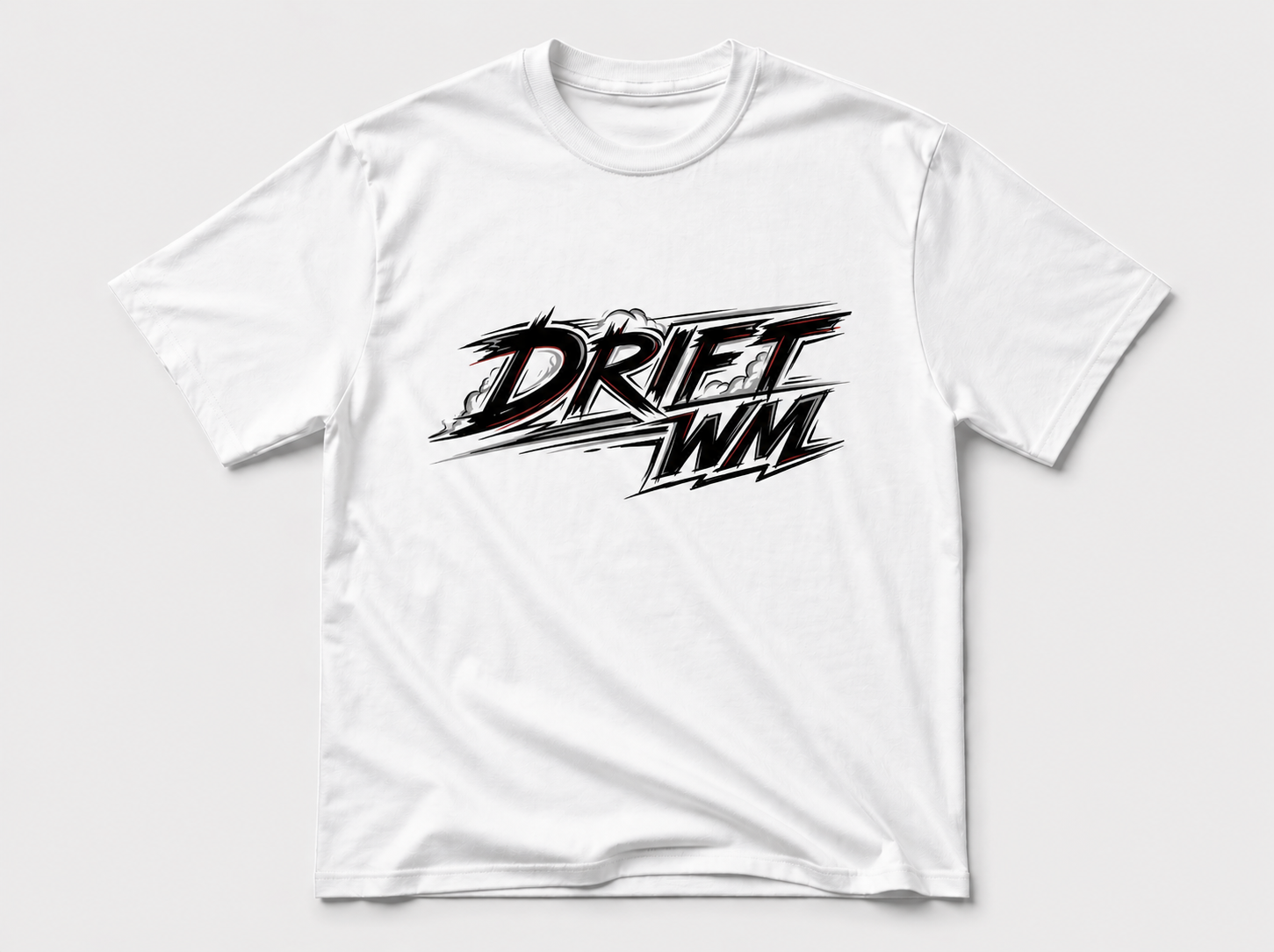
XL
100 GEL · 37 USD · 2800 RUB
Ships worldwide from Tbilisi.
Order via Telegram, Instagram, or email 2601074@gmail.com.
Revenue goes to me as driftwm’s primary maintainer.
License
GPL-3.0-or-later
Configuration
driftwm reads its configuration from ~/.config/driftwm/config.toml (respecting
XDG_CONFIG_HOME). Every field is optional — anything you omit uses the built-in
default shown below. Copy config.reference.toml to
get started, then uncomment and edit only the lines you want to change. Validate a
config with driftwm --check-config.
General
mod_key
Default: "super"
Window manager modifier key: “super” (default), “alt”, or “mod3”. Nothing occupies mod3 by default — remap a key onto it in your keymap first.
focus_follows_mouse
Default: false
Sloppy focus: keyboard focus follows the pointer to windows. Moving to empty canvas keeps focus; click empty canvas to unfocus.
window_placement
Default: "center"
Where new windows spawn when no window rule positions them:
"center"— under the focus_placement point (the viewport center unless you changed it); camera animates to the new window."cursor"— centered on the cursor (clamped to the active output’s usable area); camera stays put unless zoomed out and zoom.reset_on_new_window is true."auto"— snap-place adjacent to a cluster already in view: try the anchor’s edges (clockwise from the one nearest the viewport center), then BFS to neighbors. The anchor is the focused window while it’s visible enough, otherwise the nearest element in view (suspended stand-ins included). Falls back to “center” when nothing suitable is in view, when you clicked empty canvas to clear focus, or when no valid placement was found.
focus_placement
Default: "center"
Where a centering navigation parks the focused window in the viewport. One of “center” (default), “top”, “bottom”, “left”, “right”, “top-left”, “top-right”, “bottom-left”, “bottom-right”. Handy on a widescreen, where centering wastes both flanks, or a vertical panel, where it wastes both ends.
An edge or corner puts the window’s title bar / content edge snap.outer_gap in from the usable area (border outside) — the same edge fit-window and fill-window produce, so a placed window and a filled one line up. The inset is canvas px, so it shrinks as you zoom out: 12.0 renders as 4.8 screen px at zoom 0.4.
A window too big to fit on an axis with its two gutters centers on that axis rather than hanging off screen; the other axis still places, so a tall window under “top-left” still goes left.
It applies wherever the camera actually moves to a window — center-window, focus-center, center-nearest, Alt-Tab, click-to-navigate, activation, a newly mapped window, the window focus follows when one closes (see auto_navigate_on_close) and driftwm msg focus. Focusing a window that is already fully on screen doesn’t pan at all, so this places windows on centering navigations rather than holding one against the edge continuously. Fullscreen, pinned and fit windows lock or fill the viewport and ignore it, as does a filled window returning to the view it was filled in.
Because the spawn point follows it too (see window_placement above), this also shifts where a new window lands on the canvas — the position msg move reports and the session file stores. Under window_placement = “auto” that only applies to the fallback: a spawn that finds a slot next to the anchor still goes there.
Overridable per monitor — see the Outputs section.
autostart
Default: []
Commands to run at startup (after WAYLAND_DISPLAY is set). Each entry is passed to sh -c, so full shell syntax works (pipes, &&, env vars).
Running driftwm as a systemd session (via driftwm-session / a display manager) also launches XDG autostart entries (~/.config/autostart, /etc/xdg/autostart), in addition to the autostart list above. To opt out:
systemctl --user mask xdg-desktop-autostart.target
Example:
autostart = ["waybar", "swaync"]
[session]
Persist your canvas across restarts. Suspended windows are always saved to ~/.local/state/driftwm/session.json; these flags control the rest.
suspend_on_close
Default: false
Suspend instead of close when a window is closed by the client (titlebar X, in-app quit). close-window bindings, msg close, and taskbar closes still close for real. Per-window overridable via a suspend_on_close window rule. Whether windows that were still open at a logout come back is governed by [session].restore_windows, not by this flag. See docs/session.md.
restore_windows
Default: false
Restore still-open windows after a restart: windows that resolve to a .desktop entry are saved as you go and come back as suspended windows on the next launch (nothing auto-launches). Per-window overridable via a restore_windows window rule. See docs/session.md.
restore_camera
Default: false
Restore each output’s camera position and zoom from the saved session on the next launch; without it a fresh start centers every output. Read at launch: a mid-session change applies on the next launch.
restore_bookmarks
Default: false
Restore the bookmark registry from the saved session on the next launch, overlaying saved bookmarks on the [navigation.bookmarks] config seeds; without it runtime set-bookmark / msg bookmark edits don’t survive a restart. Read at launch: a mid-session change applies on the next launch.
[env]
Environment variables set before any clients launch. Child processes (autostart, exec bindings) inherit these. These override the compositor’s built-in toolkit defaults (MOZ_ENABLE_WAYLAND, QT_QPA_PLATFORM, SDL_VIDEODRIVER, GDK_BACKEND, ELECTRON_OZONE_PLATFORM_HINT).
Example:
QT_WAYLAND_DISABLE_WINDOWDECORATION = "1"
MOZ_ENABLE_WAYLAND = "1"
[input.keyboard]
layout
Default: "us"
XKB layout (e.g., “us,ru” for multi-layout)
remember_layout_per_window
Default: false
for multi-layout setups
variant
Default: ""
XKB variant (e.g., “dvorak”, or “,” for two defaults)
options
Default: ""
XKB options (e.g., “grp:win_space_toggle” for Super+Space layout switch) grp:alt_shift_toggle/grp:ctrl_shift_toggle break those chord bindings — use a tap binding (see [keybindings]) instead
model
Default: ""
XKB model (e.g., “pc105”)
repeat_rate
Default: 25
keys/sec
repeat_delay
Default: 200
ms before repeat starts
layout_independent
Default: true
match bindings by physical key position across layouts
num_lock
Default: true
num lock state on startup
caps_lock
Default: false
caps lock state on startup
[input.trackpad]
tap_to_click
Default: true
enable tap-to-click
natural_scroll
Default: true
reverse scroll direction (content follows fingers)
tap_and_drag
Default: true
double-tap-hold to drag
accel_speed
Default: 0.0
pointer acceleration (-1.0 to 1.0)
accel_profile
Default: "adaptive"
“flat” or “adaptive”
click_method
Default: "none"
none = device default; clickfinger = finger count (1=left, 2=right, 3=middle); button_areas = position on trackpad
disable_while_typing
Default: true
ignore trackpad input shortly after a key press (palm rejection)
enable
Default: true
false turns the trackpad off entirely. A set-trackpad press overrides this until the compositor restarts, or until a saved config changes the resulting on/off state.
disable_on_external_mouse
Default: false
turn the trackpad off while an external mouse is connected
[input.mouse]
accel_speed
Default: 0.0
pointer acceleration (-1.0 to 1.0)
accel_profile
Default: "flat"
“flat” or “adaptive”
natural_scroll
Default: false
reverse scroll direction
left_handed
Default: false
swap left/right mouse buttons (skipped on devices without left-handed support)
[input.touch]
enable
Default: true
Touchscreen hardware. Gesture thresholds and bindings live in [touch].
enable touchscreen support
map_to_output
Default: "none"
pin touch to an output by connector name; “none” (default) auto-detects the touchscreen by physical size + connector. Only set this to tell apart two identically-sized touchscreens.
Example:
map_to_output = "DP-2"
[input.tablet]
map_to_output
Default: "none"
Output name (e.g. “eDP-1”) this tablet maps to. If unset, the tablet output is auto-detected based on libinput tags, physical size matching against the output, or falling back to the internal panel.
[cursor]
theme
Default: "none"
XCURSOR_THEME; “none” = inherit from environment (e.g. “Adwaita”)
size
Default: 0
XCURSOR_SIZE; 0 = inherit from environment (e.g. 24)
inactive_opacity
Default: 0.5
cursor opacity on non-active outputs (0.0–1.0)
[navigation]
trackpad_speed
Default: 1.5
trackpad (scroll/gestures) pan multiplier (1.0 = direct, 0 = off)
mouse_speed
Default: 1.0
mouse (drag) pan multiplier (1.0 = direct, 0 = off)
touch_speed
Default: 1.0
touchscreen gesture pan multiplier (1.0 = direct, 0 = off)
drift
Default: 0.5
momentum coast: 0 = off, 0.5 = default, 1 = floatiest
camera_speed
Default: 0.3
camera lerp factor, 0-1 (higher = faster, 1 = instant)
auto_navigate_on_close
Default: true
on close, pan to the newly focused window if off-screen false = camera stays put; focus only moves to a visible window
auto_navigate_on_click
Default: false
completed click on a partially off-screen window also pans it in fully visible → focus only
nudge_step
Default: 20
px per nudge-window action (mod-shift-arrow by default)
resize_step
Default: 20
px per grow-window/shrink-window action (both unbound by default; does not affect drag-resize)
pan_step
Default: 100.0
px per pan-viewport action (mod-ctrl-arrow by default)
anchors
Default: []
Anchors: canvas points discoverable by center-nearest (4-finger swipe / Mod+Arrow) even when no window is there. Uses Y-up coordinate system. Empty by default.
Example: origin + 4 corners
anchors = [[0, 0], [-1750, 1750], [1750, 1750], [1750, -1750], [-1750, -1750]]
[navigation.bookmarks]
Named canvas points for the go-to-bookmark / set-bookmark / move-to-bookmark actions and driftwm msg bookmark. Uses Y-up coordinates (same convention as window rules). This table only SEEDS the runtime registry at startup — set-bookmark and the IPC verb update it live. An explicitly empty table (just the header, no keys) disables the default seeds. Runtime edits persist across restarts only with the [session] restore_bookmarks flag. A bookmark stores a canvas position, not a zoom level.
| Name | Position |
|---|---|
1 | [-1750, 1750] |
2 | [1750, 1750] |
3 | [1750, -1750] |
4 | [-1750, -1750] |
[navigation.edge_pan]
zone
Default: 100.0
activation zone width (px from viewport edge)
speed_min
Default: 4.0
px/frame at zone boundary
speed_max
Default: 10.0
px/frame at viewport edge
cursor_pan
Default: false
pan when the bare cursor touches a screen edge (not just while dragging). Toggle: “toggle-cursor-pan”.
cursor_zone
Default: 20.0
cursor edge-pan activation zone (px). Pans at a constant speed_max within the zone (steady, push-speed independent); speed_min is unused here.
latency_ms
Default: 120
delay before pan starts at an edge bordering another monitor (ms). Outer edges remain immediate. 0 disables.
[zoom]
step
Default: 1.1
multiplier per keypress (1.1 = 10% per press)
trackpad_speed
Default: 1.0
trackpad pinch-zoom multiplier (1.0 = direct, 0 = off)
mouse_speed
Default: 1.0
mouse-wheel zoom multiplier (1.0 = direct, 0 = off)
touch_speed
Default: 1.0
touchscreen gesture zoom multiplier (1.0 = direct, 0 = off)
fit_padding
Default: 80.0
viewport px padding for zoom-to-fit (screen space)
reset_on_new_window
Default: true
animate zoom to 1.0 when a new window is mapped (false = keep current zoom, pan only)
reset_on_activation
Default: true
animate zoom to 1.0 when an off-screen window requests focus (false = keep current zoom, pan only)
interact_min
Default: 0.0
zoom (1.0 = 100%) below which a window is too small to touch: left click navigates to it per focus_placement (a filled window returns to its fill view instead, if that view is itself above the threshold), drag anywhere moves it, pointer input is suppressed. 0 disables. Note the reachable minimum zoom is dynamic (fit * 0.5), so with few windows a low threshold can be unreachable and thus inert.
[snap]
enabled
Default: true
magnetic edge snapping during window drag
gap
Default: 12.0
spacing kept between windows, in canvas px — snapping, auto placement, clusters, and fill-window’s clearance from its neighbours
outer_gap
Default: 0.0
inset from the usable area’s edge to a window’s title bar or content edge (border outside), in canvas px — fit-window, fill-window and focus_placement measure it; 0 is edge to edge
distance
Default: 24.0
activation threshold (screen px from edge)
break_force
Default: 32.0
screen px past snap to break free
corners
Default: false
also align corners (parallel edges line up: top-to-top, left-to-left)
centers
Default: false
also align centers (midpoints line up along the moved axis)
[decorations]
bg_color
Default: "#303030"
title bar background
fg_color
Default: "#FFFFFF"
title text + close button × color
corner_radius
Default: 10
clip window corners to this radius; off while the window covers the output’s usable area
shadow
Default: true
drop shadow under window chrome; off while the window covers the output’s usable area
title_bar_height
Default: 25
SSD title bar text. The font is resolved via fontconfig — install the adwaita-fonts package for the default look; otherwise a generic sans is substituted.
SSD title bar height in px
font
Default: "Adwaita Sans"
title text font family
font_size
Default: 11
title text size in points
font_weight
Default: "medium"
thin/extralight/light/regular/medium/ semibold/bold/extrabold/black
title_align
Default: "center"
“left” or “center”. “center” centers short titles and left-aligns + ellipsizes long ones
default_mode
Default: "client"
Decoration mode for windows without a rule:
"client"— CSD: client draws its own titlebar (default)"minimal"— SSD: no titlebar; shadow, corners, and border still apply via [decorations] + per-window rules"none"— bare client surface: compositor adds zero chrome; per-window border/corner/shadow rules are ignored
“server” (driftwm titlebar) is available per-window via [[window_rules]], not as a global default: many toolkits (GTK, Electron) ignore xdg-decoration and draw CSD anyway, giving a double titlebar.
border_width
Default: 0
Borders apply to “client”, “server”, and “minimal” modes. “none” mode has no border unless one is set per-app in [[window_rules]].
px; 0 disables the border; not drawn while it hangs outside the usable area
border_color
Default: "#303030"
unfocused border
border_color_focused
Default: "#303030"
focused border. Same default as above — set this to a different color to get a focus indicator.
opacity
Default: 1.0
Focus-dependent opacity for windows that carry no opacity of their own. A window rule opacity or driftwm msg opacity pins a window at one value in both focus states and opts it out of these defaults. Fullscreen windows and widgets stay opaque unless pinned. With an animated [background], any translucent window forces a full recomposite each frame — under a global dim, that is every unfocused window.
unfocused windows
opacity_focused
Default: 1.0
focused windows
blur
Default: false
Frost the backdrop of every window whose rules never set blur — the same per-window cost and caching as the rule, on every window. A rule blur = true still wins per window; fullscreen windows and layer-shell surfaces are left alone.
Example: dim + frost
opacity = 0.85
blur = true
[effects]
blur_radius
Default: 2
number of Kawase down+up passes
blur_strength
Default: 1.1
per-pass texel spread
animate_blur_fps
Default: 20
cap (0-144) on how often the frost re-samples a background that moves on its own — an animated (u_time) shader, or a wallpaper daemon’s surface. 0 = never re-sample that motion, so the frost keeps whatever the background looked like when it was captured. Only that motion is capped: panning, zooming, and swapping the background itself (a new wallpaper, a restarted daemon) always refresh, 0 included.
animation_speed
Default: 0.5
window open/close/move/resize lerp factor (higher = faster; 1 = instant)
animation_scale
Default: 0.95
open/close grow/shrink amplitude (1 = fade only)
[background]
type
Default: "default"
Five types: “default” (built-in dot-grid — the default), “shader”, “tile”, “wallpaper”, “none”. For shader/tile/wallpaper, path is the source.
Example:
type = "shader"  # procedural GLSL (scrolls with canvas)
path = "/usr/local/share/driftwm/wallpapers/animated/fast_smoke.glsl"

type = "tile"  # image tiled across the canvas
path = "~/Pictures/Wallpapers/tile.png"

type = "wallpaper"  # single image fixed to viewport (does not scroll/zoom)
path = "~/Pictures/Wallpapers/wallpaper.jpg"

type = "none"  # render no built-in background (path ignored), so a
               # wlr-layer-shell wallpaper daemon (swaybg, swww, mpvpaper for live video)
               # is the wallpaper. Launch it yourself; see docs/shaders.md.
A “shader” can also sample an image via texture (bound to the shader’s tex sampler) — a procedural effect on your image. See docs/shaders.md.
Example: shader sampling an image
type = "shader"
path = "/usr/local/share/driftwm/wallpapers/textured/ripple.glsl"
texture = "~/Pictures/Wallpapers/photo.jpg"
mirror_tile
Default: false
tile mode only: mirror-fold the image (2×2 reflected block) so a non-seamless image’s edges always meet a reflection — no visible tile seams. Also gives a kaleidoscope/symmetry look. No-op for other background types. Single images only; gigapixel pyramidal TIFFs aren’t mirrored (pre-mirror the source).
cache_shader
Default: false
Bake a heavy static shader to a texture once and pan that, instead of recomputing it every frame. Only for shaders that slide rigidly with the camera; animated (u_time) and zoom-dependent (u_zoom) ones always render live.
transparent_shader
Default: false
Honor a shader’s output alpha so transparent pixels reveal whatever sits below the background — e.g. a wlr-layer-shell Background surface from an external wallpaper engine. Forces the shader onto the live path, so cache_shader has no effect while this is on. Image backgrounds ignore it: tile/wallpaper PNGs with an alpha channel become see-through automatically. See docs/shaders.md.
cache_budget_mb
Default: 128
Memory ceiling (MB) shared by cache_shader and gigapixel-TIFF wallpapers, with LRU eviction. Raise it for sharper revisits on large / HiDPI displays; lower it on memory-constrained machines (too low just keeps the background blurrier).
animate_fps
Default: 0
Frame-rate cap (0-1000) for animated (u_time) shader backgrounds. 0 = every output frame. Slow-moving shaders look identical well below the refresh rate; between ticks the compositor reuses the composited result instead of re-evaluating the shader, so this directly scales the background’s GPU cost.
[bindings]
disable_defaults
Default: []
Opt out of built-in default bindings by category, for a clean slate. Normally your [keybindings]/[mouse]/[gestures]/[touch] entries merge with the built-ins (use = "none" to drop a single default). Listing a category here removes ALL of that category’s defaults, leaving only your own entries. Categories: “keys”, “mouse”, “gestures”, “touch”.
Example: bring your own keyboard scheme, keep mouse + gesture + touch defaults
disable_defaults = ["keys"]
[keybindings]
Keyboard bindings: “Modifier+…+Keysym” = “action [arg]” Merges with defaults. Use “none” to unbind a default binding. “mod” expands to mod_key. Literal modifiers: alt, super (alias logo), ctrl (alias control), shift, mod3. Keysyms are XKB names (case-insensitive): return, tab, up, a, equal, etc. A bare modifier combo (e.g. “alt+shift”) is a tap binding (fires on chord release; see [input.keyboard] options).
Actions:
exec <cmd>— launch an app (shows loading cursor until window appears, exits fullscreen)exec-terminal— launch the auto-detected terminal (see [keybindings] below; override with $TERMINAL)exec-launcher— launch the auto-detected app launcher (see [keybindings] below; override with $LAUNCHER)spawn <cmd>— run a command without loading cursor and exiting fullscreen (toggles, OSD, screenshots)close-window— close the focused windowsuspend-window— close the focused window but leave a suspended window in its place (Enter/click relaunches; needs a .desktop entry); on an already-suspended window, dismisses itnudge-window <dir>— move focused window by nudge_step pxgrow-window <dir>— grow focused window by resize_step px, moving its<dir>edge outward; the opposite edge stays putshrink-window <dir>— shrink focused window by resize_step px, pulling its<dir>edge inward; the opposite edge stays putpan-viewport <dir>— pan camera by pan_step pxcenter-window— bring the focused window to the focus_placement point + reset zoom; a window still filled returns to the camera + zoom it was filled in insteadfocus-center— focus the window under the pointer and bring it there too + reset zoom; same fill exceptioncenter-nearest <dir>— navigate to nearest window in direction; a window target lands on the focus_placement point, a navigation.anchors target still centerscycle-windows forward— Alt-Tab style window cyclingcycle-windows backward— reverse cyclehome-toggle— toggle between current position and originzoom-in— step zoom inzoom-out— step zoom outzoom-reset— zoom to 1.0go-to-bookmark <name>— jump the camera to a saved bookmarkset-bookmark <name>— save the current camera center as a bookmark (create or overwrite)move-to-bookmark <name>— move the focused window’s center to a bookmark pointzoom-to-fit— fit all windows in viewportzoom-to-fit-snapped— fit only the focused window’s snap clustertoggle-fullscreen— toggle focused window fullscreenfit-window— toggle maximize: centers + resets zoom + fills viewport; restore only resizes backfit-window-snapped— fit-window for the focused window’s whole snap clusterfill-window— grow in place to fill free space, up to snap.outer_gap from the usable area’s edge and snap.gap from a neighbour; edges past those pull back; clears maximize; press again to restoretoggle-pin-to-screen— pin/unpin the focused window to the screen (ignores pan/zoom, floats above)reload-config— hot-reload config filetoggle-cursor-pan— toggle cursor edge-pan (see [navigation.edge_pan])set-trackpad on|off|toggle— enable/disable every trackpad for the rest of the session (see [input.trackpad] enable)quit— exit the compositorsend-to-output <dir>— move focused window to adjacent outputsend-cursor-to-output <dir>— move the cursor to adjacent outputswitch-layout <target>— cycle keyboard layout: next, prev (or previous), or a 0-based indexnone— unbind this key combo
Directions: up, down, left, right, up-left, up-right, down-left, down-right
| Binding | Action | Notes |
|---|---|---|
"mod+return" | exec-terminal | $TERMINAL, else first of: foot, alacritty, ptyxis, kitty, wezterm, gnome-terminal, konsole |
"mod+d" | exec-launcher | $LAUNCHER, else first of: fuzzel, wofi, rofi, bemenu-run, wmenu-run, tofi-drun, mew-run |
"mod+q" | close-window | |
"mod+e" | toggle-cursor-pan | toggle cursor edge-pan (see [navigation.edge_pan]) |
"mod+f" | toggle-fullscreen | |
"mod+m" | fit-window | |
"mod+shift+m" | fit-window-snapped | |
"mod+t" | toggle-pin-to-screen | |
"mod+c" | center-window | |
"mod+x" | focus-center | |
"mod+a" | home-toggle | |
"mod+up" | center-nearest up | |
"mod+down" | center-nearest down | |
"mod+left" | center-nearest left | |
"mod+right" | center-nearest right | |
"mod+shift+up" | nudge-window up | |
"mod+shift+down" | nudge-window down | |
"mod+shift+left" | nudge-window left | |
"mod+shift+right" | nudge-window right | |
"mod+ctrl+up" | pan-viewport up | |
"mod+ctrl+down" | pan-viewport down | |
"mod+ctrl+left" | pan-viewport left | |
"mod+ctrl+right" | pan-viewport right | |
"alt+tab" | cycle-windows forward | |
"alt+shift+tab" | cycle-windows backward | |
"mod+equal" | zoom-in | |
"mod+minus" | zoom-out | |
"mod+0" | zoom-reset | |
"mod+z" | zoom-reset | |
"mod+w" | zoom-to-fit | |
"mod+shift+w" | zoom-to-fit-snapped | |
"mod+1" | go-to-bookmark 1 | jump to bookmark 1 (top-left corner by default) |
"mod+2" | go-to-bookmark 2 | jump to bookmark 2 (top-right corner) |
"mod+3" | go-to-bookmark 3 | jump to bookmark 3 (bottom-right corner) |
"mod+4" | go-to-bookmark 4 | jump to bookmark 4 (bottom-left corner) |
"mod+shift+1" | set-bookmark 1 | overwrite bookmark 1 at the current view |
"mod+shift+2" | set-bookmark 2 | |
"mod+shift+3" | set-bookmark 3 | |
"mod+shift+4" | set-bookmark 4 | |
"mod+alt+up" | send-to-output up | move window to output above |
"mod+alt+down" | send-to-output down | |
"mod+alt+left" | send-to-output left | |
"mod+alt+right" | send-to-output right | |
"mod+l" | spawn swaylock -f -c 000000 -kl | |
"mod+ctrl+shift+q" | quit | |
"XF86AudioRaiseVolume" | spawn wpctl set-volume @DEFAULT_AUDIO_SINK@ 5%+ | |
"XF86AudioLowerVolume" | spawn wpctl set-volume @DEFAULT_AUDIO_SINK@ 5%- | |
"XF86AudioMute" | spawn wpctl set-mute @DEFAULT_AUDIO_SINK@ toggle | |
"XF86MonBrightnessUp" | spawn brightnessctl set +5% | |
"XF86MonBrightnessDown" | spawn brightnessctl set 5%- | |
"XF86AudioPlay" | spawn playerctl play-pause | |
"XF86AudioPause" | spawn playerctl play-pause | |
"XF86AudioNext" | spawn playerctl next | |
"XF86AudioPrev" | spawn playerctl previous | |
"XF86AudioStop" | spawn playerctl stop | |
"Print" | spawn grim - | wl-copy | |
"shift+Print" | spawn grim -g \"$(slurp -d)\" - | wl-copy |
Example: built-in window capture (isolated window + shadow) to clipboard
"ctrl+Print" = "spawn driftwm msg screenshot window -o - | wl-copy"
Example: tap binding — bare modifier chord, fires on release with no key on top
"alt+shift" = "switch-layout next"
Example: fill-window (unbound by default)
"mod+g" = "fill-window"
Example: suspend-window (unbound by default)
"mod+s" = "suspend-window"
Example: set-trackpad (unbound by default)
"mod+f10" = "set-trackpad toggle"   # flip the trackpad between on and off
"mod+shift+f10" = "set-trackpad off"   # turn it off whatever the current state
Example: keyboard resize (unbound by default) — both drive the right edge, one pushing it out and one pulling it in, by resize_step px
"mod+ctrl+shift+right" = "grow-window right"
"mod+ctrl+shift+left" = "shrink-window right"
[mouse]
resize_on_border
Default: true
When true (default), dragging a window’s edge or corner resizes it via the invisible resize border (SSD frame or CSD margin). Set false to make that border inert — resize only through explicit bindings (e.g. alt+right) or gestures. The band stays part of the window either way: pointer focus and on-window bindings still apply over it, so it never reads as empty canvas.
decoration_resize_snapped
Default: false
When true, resizing a window by dragging its edge (SSD or CSD border) propagates to every window connected to it via snap adjacency. Only that drag: the grow-window/shrink-window keybindings and the resize gesture always size the one window. Bind resize-window-snapped to a mouse button, gesture, or touch trigger for a cluster-aware drag of your own.
decoration_fit_snapped
Default: false
When true, maximize/unmaximize initiated via window decoration (CSD maximize button, SSD title-bar double-click, or xdg/foreign-toplevel set_maximized) propagates to every window connected via snap adjacency. Keybinding/gesture fit is unaffected — bind fit-window-snapped explicitly if you want cluster-aware fit there too.
Mouse bindings: “Modifier+…+Trigger” = “action” Context-aware: on-window, on-canvas, anywhere. Specific context checked first, then “anywhere” as fallback. Click-to-focus and SSD decoration clicks are always hardcoded. Triggers: left, right, middle (buttons), trackpad-scroll, wheel-scroll, wheel-up, wheel-down. The wheel-up/wheel-down triggers fire once per discrete wheel notch and can run any action, e.g. volume on mod+shift+scroll. Merges with defaults. Use “none” to unbind.
Mouse actions:
move-window— drag the focused windowmove-snapped-windows— drag the window plus every window connected via snap adjacencyresize-window— drag-resize the focused windowresize-window-snapped— drag-resize, propagating to the snap clusterpan-viewport— drag or scroll to pan the camerazoom— drag or scroll to zoomcenter-nearest— navigate toward the drag direction
Any action from the [keybindings] Actions list also works on button and wheel-up/wheel-down triggers: exec <cmd>, close-window, toggle-fullscreen, etc.
[mouse.on-window]
| Binding | Action | Notes |
|---|---|---|
"alt+left" | move-window | |
"alt+shift+left" | move-snapped-windows | |
"alt+right" | resize-window | |
"alt+shift+right" | resize-window-snapped | |
"alt+middle" | fit-window | |
"alt+shift+middle" | fit-window-snapped | |
"mod+middle" | toggle-fullscreen |
[mouse.on-canvas]
| Binding | Action | Notes |
|---|---|---|
"left" | pan-viewport | unmodified left-click on empty canvas → pan |
"trackpad-scroll" | pan-viewport | trackpad scroll on empty canvas → pan |
"wheel-scroll" | zoom | mouse wheel on empty canvas → zoom |
[mouse.anywhere]
| Binding | Action | Notes |
|---|---|---|
"mod+left" | pan-viewport | |
"mod+ctrl+left" | center-nearest | direction from drag delta |
"mod+trackpad-scroll" | pan-viewport | |
"mod+wheel-scroll" | zoom |
[gestures]
swipe_threshold
Default: 12.0
Trackpad gesture thresholds — tune for your touchpad size. These three keys also exist under [touch] for the touchscreen, where swipe_threshold is measured in millimetres — the values are not interchangeable between the two sections.
px cumulative distance before directional swipe fires
pinch_in_threshold
Default: 0.85
scale below which pinch-in fires (1.0 = no pinch)
pinch_out_threshold
Default: 1.15
scale above which pinch-out fires (1.0 = no pinch)
Gesture bindings: "Modifier+N-finger-<type>" = "action" Context-aware: on-window, on-canvas, anywhere. Unbound gestures are forwarded to the focused app. “none” unbinds.
Gesture types (2–5 fingers):
N-finger-swipe— continuous OR threshold (action determines behavior)N-finger-swipe-up/down/left/right— threshold only, physical finger direction3-finger-doubletap-swipe— continuous only (window grabs; 3-finger tap then swipe)N-finger-pinch— continuous only (use pinch-in/out for discrete)N-finger-pinch-in/out— threshold onlyN-finger-hold— threshold only (fires on release)
Continuous actions, locked to their triggers:
pan-viewport— swipezoom— pinchmove-window— swipe or doubletap-swipemove-snapped-windows— swipe or doubletap-swiperesize-window— swipe or doubletap-swiperesize-window-snapped— swipe or doubletap-swipe
Threshold actions: any action from the [keybindings] Actions list. center-nearest may also be bound bare — its direction is the pan direction of the swipe (fingers left looks right), unlike the named per-direction triggers above which are physical (swipe triggers only).
[gestures.on-window]
| Binding | Action | Notes |
|---|---|---|
"alt+3-finger-swipe" | resize-window | |
"alt+shift+3-finger-swipe" | resize-window-snapped | |
"3-finger-doubletap-swipe" | move-window | |
"alt+2-finger-pinch-in" | fit-window | |
"alt+2-finger-pinch-out" | fit-window | |
"alt+shift+2-finger-pinch-in" | fit-window-snapped | |
"alt+shift+2-finger-pinch-out" | fit-window-snapped | |
"alt+3-finger-pinch-in" | toggle-fullscreen | |
"alt+3-finger-pinch-out" | toggle-fullscreen |
[gestures.on-canvas]
| Binding | Action | Notes |
|---|---|---|
"2-finger-pinch" | zoom |
[gestures.anywhere]
| Binding | Action | Notes |
|---|---|---|
"3-finger-swipe" | pan-viewport | continuous (per-frame dx/dy) |
"4-finger-swipe" | center-nearest | threshold (accumulate, detect direction, fire once) |
"mod+3-finger-swipe" | center-nearest | mod makes 3-finger swipe navigate too |
Example: per-direction overrides (threshold only)
"4-finger-swipe-up" = "exec brightnessctl set +5%"
"4-finger-swipe-down" = "exec brightnessctl set 5%-"
"4-finger-swipe-right" = "cycle-windows forward"
"4-finger-swipe-left" = "cycle-windows backward"
| Binding | Action | Notes |
|---|---|---|
"mod+2-finger-pinch" | zoom | mod overrides app forwarding |
"3-finger-pinch" | zoom | continuous |
"4-finger-pinch-in" | zoom-to-fit | threshold |
"mod+4-finger-pinch-in" | zoom-to-fit-snapped | |
"4-finger-pinch-out" | home-toggle | threshold |
"mod+3-finger-pinch-in" | zoom-to-fit | |
"mod+3-finger-pinch-out" | home-toggle | |
"4-finger-hold" | center-window | fires on release |
"mod+3-finger-hold" | center-window |
[touch]
swipe_threshold
Default: 15.0
Touchscreen gesture thresholds. Touchscreen hardware (enable, output mapping) is configured under [input.touch] instead.
These three keys share their names with [gestures], but the values are not interchangeable: swipe_threshold is in millimetres here and in px there. A touchscreen is a display, so swipe travel is physical — the millimetre value is converted to px through the panel’s pixel density.
swipe_threshold must be positive; 0 or less falls back to the default with a warning.
mm cumulative distance before directional swipe fires
pinch_in_threshold
Default: 0.85
scale below which pinch-in fires (1.0 = no pinch)
pinch_out_threshold
Default: 1.15
scale above which pinch-out fires (1.0 = no pinch)
tap_time
Default: 250
Tap and hold timings. Raise them if gestures need a deliberate, unhurried touch; lower them if the panel feels sluggish to respond. Every single tap waits out double_tap_time before firing — lower it for snappier taps, at the cost of needing faster double-taps.
ms a tap may last; lift later and no tap fires
double_tap_time
Default: 300
ms window for a second tap to pair into a double-tap — and the delay a single tap’s action waits out before it fires
hold_time
Default: 350
ms of dwell before a drag commits as a hold gesture (hold-swipe, doubletap-hold-swipe) instead of a plain swipe
tap_travel
Default: 2.0
mm a contact may drift and still count as a tap; past this it becomes a pan or drag
Bindings: "N-finger-<type>" = "action" (touch has no keyboard modifiers) Context-aware: on-window, on-canvas, anywhere. Unbound gestures are forwarded to the focused app. “none” removes a binding in its context. A fully unbound gesture forwards to the app.
Touch gesture types (1–5 fingers):
N-finger-swipe— continuous OR threshold (action determines behavior)N-finger-swipe-up/down/left/right— threshold only, physical finger directionN-finger-pinch— continuous only (use pinch-in/out for discrete)N-finger-pinch-in/out— threshold onlyN-finger-tap— threshold only (quick touch, no movement)N-finger-doubletap— threshold only (two quick taps)N-finger-doubletap-swipe— continuous only (tap then drag)N-finger-doubletap-hold-swipe— continuous only (tap, hold, then drag)N-finger-hold-swipe— continuous only (dwell then drag)
Continuous and threshold actions: the same sets and rules as under [gestures].
[touch.on-window]
1–2 fingers starting on a window forward to the app, and the 3+ finger pan/zoom/navigate gestures are bound “anywhere” so they apply over windows too. The window-targeted gestures live here: they act on the window the fingers land on (a gesture starting on empty canvas just pans).
| Binding | Action | Notes |
|---|---|---|
"3-finger-doubletap" | fit-window | |
"3-finger-doubletap-swipe" | move-window | continuous |
"3-finger-hold-swipe" | resize-window | continuous (dwell then drag) |
"3-finger-doubletap-hold-swipe" | move-snapped-windows | continuous (tap, hold, then drag — moves the whole snap cluster) |
[touch.on-canvas]
| Binding | Action | Notes |
|---|---|---|
"1-finger-swipe" | pan-viewport | |
"2-finger-swipe" | pan-viewport | |
"2-finger-pinch" | zoom |
[touch.anywhere]
| Binding | Action | Notes |
|---|---|---|
"3-finger-swipe" | pan-viewport | continuous |
"3-finger-pinch" | zoom | continuous |
"4-finger-swipe" | center-nearest | threshold (direction from drag) |
"4-finger-pinch-in" | zoom-to-fit | threshold |
"4-finger-pinch-out" | home-toggle | threshold |
"5-finger-swipe" | center-nearest | threshold (direction from drag) |
"5-finger-pinch-in" | zoom-to-fit | threshold |
"5-finger-pinch-out" | home-toggle | threshold |
"3-finger-tap" | center-window |
[xwayland]
enabled
Default: true
X11 support via xwayland-satellite. driftwm spawns satellite eagerly at startup, exports DISPLAY=:N, and X11 apps connect transparently. If the binary isn’t found, X11 support is disabled with a warning; everything else still runs.
spawn xwayland-satellite at startup
path
Default: "xwayland-satellite"
path to xwayland-satellite binary ($PATH lookup works)
[backend]
wait_for_frame_completion
Default: false
Hardware stability quirks. All default to false (opt-in). Enable these if you experience flickering, crashes, or rendering issues. Particularly useful on NVIDIA GPUs with proprietary drivers. Note: These flags must be set before launching driftwm. Changing them requires a restart. For additional NVIDIA-specific settings, set these environment variables in your session wrapper script or shell profile before starting driftwm:
export SMITHAY_USE_LEGACY=1          # Use legacy DRM API instead of atomic modesetting
export __GL_GSYNC_ALLOWED=0
export __GL_VRR_ALLOWED=0
export __GL_MaxFramesAllowed=1
export NVD_BACKEND=direct
Force GPU-fence wait before every page flip (already done automatically when smithay reports needs_sync — typical case on NVIDIA. Set true only if you still see flicker after defaults.)
disable_direct_scanout
Default: false
Force EGL composition (disable direct scanout)
disable_hardware_cursor
Default: false
Composite the cursor into the frame instead of using the KMS cursor plane, while keeping direct scanout for fullscreen apps. Fixes a stuttering / tearing hardware cursor on discrete NVIDIA GPUs.
max_capture_fps
Default: 0
Cap FPS delivered to continuous screen-capture clients (recorders / casts). 0 = unlimited. Each captured frame forces a full-scene re-composite that competes with a fullscreen app behind it; a cap (e.g. 30 or 60) trims that overhead while gaming + streaming. One-shot screenshots (grim) are never throttled.
[output.outline]
color
Default: "#ffffff"
outline color for other monitors’ viewports
thickness
Default: 1
pixels (0 to disable)
opacity
Default: 0.5
0.0–1.0
Outputs
Per-output configuration — the monitor’s hardware setup, plus the handful of behaviors that are worth varying between a widescreen and a portrait panel. Each [[outputs]] entry matches by connector name. Find connector names with wlr-randr or check driftwm logs at startup. Outputs without a matching entry default to scale 1.0. On the winit backend only position and focus_placement apply — mode, scale and transform belong to the host window.
name = "*" is a wildcard entry: it applies to any connected output that has no exact-name entry (exact entries always win). A fixed position makes no sense on the wildcard — it’s ignored (falls back to “auto”).
An exact-name entry replaces the wildcard entry wholesale — fields do not merge. So if name = "*" sets focus_placement = “right” and an exact name = "DP-1" entry sets only scale, DP-1 takes neither the wildcard’s focus_placement nor its hot corners: every field it doesn’t name falls back to the top-level key or the built-in default, never to the wildcard.
mode accepts “preferred”, “max”, “WxH”, or “WxH@Hz”. “preferred” (the default, and the safe choice) uses the monitor’s advertised preferred mode. “max” picks the highest resolution, then highest refresh. A bare “WxH” only selects a mode the monitor already advertises — if none matches, it keeps the preferred mode (logged as a warning, not an error). “WxH@Hz” forces that exact mode, synthesizing a CVT modeline when the monitor doesn’t advertise it (intended for CRTs or forcing non-standard modes; may be rejected by some panels).
Supported fields:
name— connector name, or “*” for the fallback entry (see above); required.scale— fractional scale factor (default: 1.0).transform— normal, 90, 180, 270, flipped, flipped-90, flipped-180, or flipped-270 (default: normal).position— “auto” (left-to-right placement) or [x, y] in layout coords.mode— “preferred”, “max”, “WxH”, or “WxH@Hz” (see above; default: preferred).focus_placement— where a centering navigation parks the focused window on THIS monitor; the same nine values as the top-level key (see General), which it overrides.hot_corners— per-output screen-corner action bindings (see below).
Hot-corners bind any keyboard action to a screen corner. The action fires when the cursor enters that corner of THIS output (per-monitor setting), and re-arms when the cursor leaves. The whole [[outputs]] block can be omitted if you don’t need any hot corners on a particular monitor. A name = "*" entry’s hot corners apply to any output without an exact-name [[outputs]] entry; per the wholesale-replacement rule above, an exact entry with no hot_corners table gets none.
Corner actions: any action from the [keybindings] Actions list. Pass “none” to leave a corner unbound.
Example:
[[outputs]]
name = "eDP-1"           # connector name, or "*" for a fallback entry (required)
scale = 1.5              # fractional scale (default: 1.0)
transform = "normal"     # normal, 90, 180, 270, flipped, flipped-90, flipped-180, flipped-270
position = "auto"        # "auto" (left-to-right) or [x, y] in layout coords
mode = "preferred"       # "preferred", "max", "1920x1080", or "2560x1440@144"

[[outputs]]
name = "HDMI-A-1"
scale = 1.0
mode = "1920x1080@60"
focus_placement = "right"   # park the active window against this ultrawide's right edge

[outputs.hot_corners]
threshold = 4         # corner zone size in logical px (default: 4)
top_left = "zoom-to-fit"
top_right = "none"
bottom_left = "spawn grim - | wl-copy"
bottom_right = "exec-launcher"
disable_when_fullscreen = true   # suppress hot-corners while a fullscreen window is on this output (default: true)
disable_while_dragging  = true   # suppress hot-corners while any mouse button is held, or a pointer grab (move/resize/pan) is active (default: true)
Window rules
Window rules: match windows and apply per-window overrides. ALL matching rules are merged in config order (later rules override earlier ones for scalar fields; boolean flags are sticky-on). This lets you compose rules — e.g. one rule sets blur=true, a later one adds opacity=0.85.
This section is the field reference. The full recipe collection, along with matching/merge semantics and pattern-syntax details, lives in docs/window-rules.md.
Supported fields:
app_id— match: Wayland app_id. X11 apps proxied via xwayland-satellite arrive with app_id set from WM_CLASS instance (typically lowercase). At least one of app_id/title is required; all specified criteria must match.title— match: window title.position— [x, y] coordinates (visual-frame center, Y-up). Canvas coords, or output-relative (origin = output center) when pinned_to_screen.size— [width, height] initial dimensions of the visual frame — the app’s content plus any title bar and border driftwm draws, so the same numbers give the same on-screen rectangle whatever the decoration mode (one-shot; user/app can resize afterwards, so pair with widget = true to lock it)fullscreen— true: force this window to open in fullscreen modefocus_on_open— false: map the window without focusing it or moving the camera to it. Omit to keep the default focus-on-map behavior. Pairs well with pinned_to_screen for unobtrusive overlays; the window still takes focus later through normal interaction (hover or click). (default: true)widget— true: immovable by hand (no drag, gesture or nudge) thoughdriftwm msg movestill repositions it, below normal windows, excluded from navigation and alt-tab (default: false)pinned_to_screen— true: lock the window to the output’s screen space — ignores pan/zoom, floats above normal windows (PiP, toolbars).positionbecomes output-relative; movable unless widget = true. Toggle live withtoggle-pin-to-screen(Mod+T). (default: false)suspend_on_close— override [session].suspend_on_close for matched windows (true / false). Escape hatch for terminals and scratchpads that should always really close (or always suspend). (default: inherit)restore_windows— override [session].restore_windows for matched windows (true / false). false keeps an app out of the session save, so it doesn’t come back as a suspended window on the next launch; true restores one app while the section key stays off. Key the rule on app_id, since a rule matching on title alone governs saving only. Independent of suspend_on_close, which governs closes: set both false for an app that should never leave a stand-in behind. A window you suspended explicitly still comes back. (default: inherit)preserve_aspect_ratio— true: keep the window’s aspect ratio during interactive resizes; the ratio is taken at the start of each resize. (default: false)decoration— overrides [decorations] default_mode for matched windows. Omit to inherit default_mode. Values:- “client”: CSD — client’s own titlebar
- “server”: SSD — driftwm’s titlebar
- “minimal”: SSD — no titlebar, just shadow + corners + border (this is the mode for chrome-on-borderless widgets; border_width / corner_radius / shadow rules apply)
- “none”: bare client surface — compositor adds zero chrome, and per-window border_width / corner_radius / shadow rules are ignored. Use “minimal” if you want chrome without a titlebar.
blur— true: blur background behind this window (default: false). Real GPU/VRAM cost, but it tracks the window’s size on screen, so zooming out makes a blurred window cheaper, not dearer. Once several blurred windows cover most of the viewport between them the compositor switches to one shared full-screen blur they all sample, so a screenful of frost doesn’t multiply the work. Results are cached, and recomputed when the view moves or the content behind the window changes.opacity— 0.0–1.0: window transparency (default: 1.0, fully opaque). Below 1.0 a fullscreen window shows the canvas behind it instead of black: this [background] (dot grid, shader or image) and any canvas layers keep drawing under it, while every layer surface stays hidden along with the other windows. A wlr-layer wallpaper daemon (swaybg, swww) is a layer surface, so it does not show through; set the wallpaper in [background] if you want it visible. Costs that output its direct scan-out for as long as the window is fullscreen, so leave games opaque.border_width— per-window border width override (px). Set to 0 to disable border on a window even when [decorations] border_width > 0. Ignored for decoration = “none”.border_color— per-window unfocused border color, “#rrggbb” or “#rrggbbaa” (optional alpha byte), e.g. “#5c5c5c”.border_color_focused— per-window focused border color; same “#rrggbb[aa]” form, with an optional alpha byte.corner_radius— per-window corner radius override (px). Affects content clip, border shape, and shadow. Ignored for decoration = “none”.shadow— per-window shadow toggle. Overrides [decorations] shadow. Ignored for decoration = “none”.output— output name (e.g. “DP-1”) for this window’s fullscreen and initial screen-pin placement. Fullscreen: the rule wins; otherwise the output the client requested; otherwise the active output. pinned_to_screen: the rule; otherwise the- active output — with
positionresolved against it; dragging or send-to-output reassigns it afterward. Find names underoutputs.*indriftwm msg state. (default: unset)
- active output — with
pass_keys— controls which compositor keybindings are forwarded to the app:- pass_keys = true — forward ALL keys (game-friendly)
- pass_keys = [“mod+q”, “ctrl+q”] — forward ONLY these combos; all other compositor shortcuts stay active
- pass_keys = false / omit — compositor handles everything (default)
- VT switching (Ctrl+Alt+F1–F12) — always stays in the compositor
pass_mouse— controls which compositor mouse bindings ([mouse.*]) are forwarded to the app:- pass_mouse = true — forward ALL mouse bindings over this window
- pass_mouse = [“alt+left”, “alt+right”] — forward ONLY these combos; all other mouse bindings stay active
- pass_mouse = false / omit — compositor handles everything (default)
- SSD title bar, resize borders and close button — always stay with the compositor
layer_order— stacking among layer surfaces sharing the same wlr-layer (higher = on top; ties stack by map order, newest on top). The protocol has no z-index within a layer, so two overlay clients (e.g. an on-screen keyboard and a touch visualizer) otherwise stack by launch order. Also orders canvas-positioned layers among themselves. Ignored for regular windows.
Pattern syntax (applies to all match fields):
- Plain string
"kitty"— exact match - Glob
"steam_app_*"—*wildcard - Regex
"/^steam_app_\\d+$/"— wrap in/…/
To find a window’s identifiers, run while the window is open:
`driftwm msg state`
Layer-shell surfaces (panels, notifications, bars like waybar): matched by their namespace against app_id. decoration is ignored — layers have no decoration mode. Chrome (border_width, corner_radius, shadow) is field-by-field opt-in on the rule and does NOT inherit from [decorations]. Without explicit values on the rule, a layer surface has no border, no shadow, and no corner clip.
A few representative rules follow; docs/window-rules.md collects the rest.
Example: Picture-in-Picture, pinned to the screen, stays put while you pan/zoom
[[window_rules]]
title            = "Picture-in-Picture"
pinned_to_screen = true
position         = [0, -300]   # output-relative: 300px below center; movable, drop to center on the output
Example: Game, only let ctrl+q through, keep everything else (mod+q still closes)
[[window_rules]]
app_id    = "factorio"
pass_keys = ["ctrl+q"]
Example: Blender, let alt+drag reach the app (orbit / three-button emulation), keep all keys
[[window_rules]]
app_id     = "blender"
pass_mouse = ["alt+left", "alt+middle", "alt+right"]
Example: Compose rules, blur from first rule, opacity from second (both apply)
[[window_rules]]
app_id = "Alacritty"
blur   = true

[[window_rules]]
app_id  = "Alacritty"
opacity = 0.9
Window Rules
Window rules let you apply per-window overrides based on a window’s identity.
Rules are declared as [[window_rules]] sections in your config file.
Most rule effects are resolved once, when a window maps — see When rules take effect.
How matching works
All matching rules are applied, not just the first one. Rules are processed in config order and merged together:
- Scalar fields (
decoration,opacity,position,size,fullscreen,focus_on_open,border_width,border_color,border_color_focused,corner_radius,shadow,output,layer_order,suspend_on_close,restore_windows): last-wins — a later rule overrides an earlier one. - Boolean flags (
widget,pinned_to_screen,blur,preserve_aspect_ratio): sticky-on — once set by any matching rule, the flag stays set regardless of later rules. There is no way to turn one back off: writingblur = falseorwidget = falsein a rule does nothing. pass_keys:Allis sticky-on;Onlylists are unioned across rules (seepass_keys).pass_mouse: same shape —trueis sticky-on; combo lists are unioned across rules (seepass_mouse).
This lets you compose independent rules for the same window:
# All three rules below apply to the same kitty window and are merged:

[[window_rules]]
app_id = "kitty"
blur   = true        # sticky-on: cannot be unset by later rules

[[window_rules]]
app_id  = "kitty"
opacity = 0.85       # blur from above is preserved

[[window_rules]]
title   = "*nvim*"   # title match narrows to nvim windows only
opacity = 1.0        # override opacity for nvim (blur still applies)
Match criteria
At least one criterion is required. All specified criteria must match.
| Field | Matches |
|---|---|
app_id | Wayland app_id (X11 apps via xwayland-satellite arrive with app_id set from WM_CLASS instance, typically lowercase) |
title | Window title |
Finding a window’s identifiers
driftwm msg state # camera, zoom, and the window inventory
To get the app ids and titles of all current non-widget windows:
driftwm msg --json state | \
jq '.Ok.State.windows[] | select(.is_widget == false and .suspended != true) | {app_id, title}'
Pattern syntax
All match fields support three syntaxes:
| Syntax | Example | Meaning |
|---|---|---|
| Exact string | "kitty" | Exact match (case-sensitive) |
| Glob | "steam_app_*" | * matches any sequence of chars |
| Regex | "/^steam_app_\\d+$/" | Full regular expression (wrap in /…/) |
Multiple * wildcards are allowed in glob patterns: "*terminal*".
Regex patterns don’t support backreferences or lookaround.
# Match any Steam game by regex
[[window_rules]]
app_id    = "/^steam_app_\\d+$/"
pass_keys = true
Coordinates and sizes
position and size describe a window’s visual frame: the app’s content
plus the title bar and border driftwm draws around it, if it draws any.
position is that frame’s center, with Y pointing up.
This is what makes a layout portable. size = [800, 600] gives you an 800x600
window on screen whether it is server-decorated, client-decorated, or bare, and
two windows placed 800 apart sit flush against each other either way. The same
numbers come back out of driftwm msg state and the
state file, so a rule and a running window always describe
the same rectangle.
The app itself gets whatever is left inside the frame. With
[decorations] title_bar_height = 25 and border_width = 2, a
size = [800, 600] rule that also sets decoration = "server" hands the client
796x571.
Field reference
Every rule field — its type, default, accepted values, and per-field caveats
(which fields decoration = "none" ignores, the blur GPU/VRAM cost, the one-shot
size, how layer-shell surfaces opt into chrome) — is documented in the generated
config reference, whose canonical source is
config.reference.toml. This page is the recipe and
semantics guide; the reference is the field dictionary.
Layer-shell surfaces interpret chrome fields differently — see Layer-shell surfaces below.
Transparency
opacity below 1.0 makes a window see-through, and that carries into fullscreen:
a translucent fullscreen window shows the canvas behind it instead of black.
“Canvas” means the compositor’s own [background] —
the built-in dot grid, your shader, or your tile/wallpaper image — plus any
canvas layers. Everything else stays hidden: other windows, pinned windows,
suspended stand-ins, and every layer-shell surface, panels included. It is a
window onto the plane, not a way to see the rest of your desktop.
That last part decides what a wallpaper daemon looks like through the window.
swaybg, swww and mpvpaper paint on the background wlr-layer, which is a layer
surface like any other and stays culled — so with [background] type = "none"
and one of those as your wallpaper, a translucent fullscreen window still shows
black. Point [background] at the image or shader instead if you want it
visible through the window.
Widgets divide along the same line, by the protocol they are built on: a widget that is a layer-shell surface placed at canvas coordinates rides the canvas layers and shows through, while a widget that is a rule-placed xdg-toplevel is a window and stays hidden. Two widgets that look identical on the canvas can differ here.
[[window_rules]]
app_id  = "mpv"
opacity = 0.85
It holds across the fullscreen transitions too, and driftwm msg opacity changes
it live on a window that is already fullscreen. The trade: while a translucent
window is fullscreen, that output loses direct scan-out, because the compositor
has to compose the canvas under it every frame. Leave games opaque.
A rule opacity is a pin: the window draws at that one value whether it is
focused or not, and it opts the window out of the global opacity /
opacity_focused defaults in [decorations]. That
includes opacity = 1.0 — how a screen-pinned PiP window stays fully opaque
while everything else dims. driftwm msg opacity <value> pins the window the
same way.
Screen-pinned windows
pinned_to_screen = true lifts a window out of the infinite canvas and fixes it
to one output’s screen space: it does not pan or zoom with the camera, and it
renders above normal windows (but below panels / Top & Overlay layer-shell
surfaces). Use it for Picture-in-Picture, video-call toolbars, or any always-on
floating overlay.
[[window_rules]]
title            = "Picture-in-Picture"
pinned_to_screen = true
position         = [540, -350]
size             = [570, 320]
decoration       = "none"
- Coordinates are output-relative. When pinned,
positionis measured from the output center (still the visual frame’s center, Y-up):[0, 0]centers the window on the monitor,+Yis up. Droppositionto center it. A position that would push the window off the monitor is clamped so the whole frame stays visible — a title bar never goes off the top edge. - Off the canvas. Pinned windows are excluded from navigation, alt-tab,
snapping, fit/center actions, and canvas screenshots
(
driftwm msg screenshot). They remain focusable and closable; SSD windows show a small dot in the title bar. - Fullscreen round-trips. A fullscreen request (or
Mod+F) temporarily unpins the window to fill the screen; exiting fullscreen re-pins it in place. Any canvas pan/zoom exits fullscreen, just like a normal window. - Dragging it across monitors reassigns it to that output. Combine with
widget = trueto make it immovable.
To find the numbers for a rule, pin the window live with toggle-pin-to-screen
(Mod+T), drag and resize it into place, then copy position/size from its
entry in the per-output pinned section of driftwm msg state — those are
already output-relative rule coordinates.
Output selection
On a multi-monitor setup, output names a monitor by its output name (e.g.
"DP-1" — find names under outputs.* in driftwm msg state). It governs two
placements:
[[window_rules]]
app_id = "steam_app_*"
output = "DP-1"
- Fullscreen — which monitor a window fullscreens onto. Precedence: the
rule’s
outputwins; otherwise the output the client itself requested; otherwise the active output (where the pointer is). - Screen-pinned — which monitor a
pinned_to_screenwindow initially pins to. Precedence: the rule’soutputwins; otherwise the active output. The rule’spositionis then resolved against that monitor. Afterwards, dragging the window across monitors — orsend-to-output— reassigns it, sooutputonly seeds the starting display.
An unknown or disconnected output name falls through to the next choice.
output does not move a plain windowed (non-fullscreen, non-pinned) window.
Layer-shell surfaces
Layer-shell surfaces (panels, notifications, bars like waybar) have no decoration
mode — the decoration field on a rule matching a layer surface is ignored.
Chrome on layers is field-by-field opt-in: set border_width,
corner_radius, and/or shadow directly on the rule. Layers do not inherit
[decorations] defaults for those three fields — without an explicit value on
the rule, a layer surface has no border, no shadow, and no corner clipping.
border_color_focused is also ignored on layers (the focused / unfocused
distinction is window-only); layers always use border_color.
[[window_rules]]
app_id        = "waybar"
widget        = true
corner_radius = 10
shadow        = true
border_width  = 2
pass_keys
pass_keys forwards compositor keybindings to the focused window instead of
handling them — useful for games and remote-desktop clients. Key combo syntax is
the same as in [keybindings]: mod+key, ctrl+shift+key, etc.
VT switching (Ctrl+Alt+F1–F12) always stays in the compositor, so
pass_keys = true can never lock you out of your TTYs.
When multiple rules match the same window, ["combo", …] lists are unioned,
and true beats a list: if one rule says true and another says ["mod+q"],
the result is true.
pass_mouse
pass_mouse is the same idea for the [mouse.*] bindings: a claimed press or
scroll reaches the app instead of running its compositor action. Apps that want
alt-drag for themselves — Blender, Krita, GIMP, CAD three-button emulation —
need it, since alt+left/alt+middle/alt+right are the on-window move / fit /
resize defaults.
Combo syntax is the [mouse.*] binding syntax: modifiers plus one of left,
right, middle, trackpad-scroll, wheel-scroll, wheel-up, wheel-down.
mod resolves through mod_key as everywhere else. To hand an app the default
mod+wheel-scroll zoom, list "mod+wheel-scroll".
The discrete wheel-up / wheel-down triggers are a separate channel from the
continuous wheel-scroll one, so listing "mod+wheel-up" claims only the
notch binding — a mod+wheel-scroll zoom keeps firing unless it is listed too.
Unlike pass_keys, which follows the focused window, pass_mouse is
resolved against the window under the pointer — canvas, pinned or
fullscreen — because that is what a mouse binding’s context comes from.
Compositor chrome always stays with the compositor: the SSD title bar, the
close button and the resize borders keep their normal behaviour for every
button, so alt+left on a title bar still starts a move and alt+right on a
resize border still resizes.
A claimed click behaves exactly as an unbound one, which also means it still
focuses and raises the window — and with auto_navigate_on_click = true it
still pans the camera to the window.
Below [zoom] interact_min a canvas window has no pointer focus to forward to,
so a canvas window’s pass_mouse claims are ignored there and the compositor
bindings stay live. A pinned window’s button claims and a fullscreen
window’s claims still apply.
When multiple rules match the same window, combo lists are unioned and
true beats a list.
[[window_rules]]
app_id     = "blender"
pass_mouse = ["alt+left", "alt+middle", "alt+right"]
Examples
Desktop widget (pinned clock/info panel)
[[window_rules]]
app_id     = "my-widget"
position   = [0, 0]
widget     = true
decoration = "none"
A widget ignores drags, gestures and nudges, so position is where it stays —
but driftwm msg move <X> <Y> --id <ID> still repositions one at runtime, which
is how external desktop-icon clients scatter icons across the canvas. That move
lasts only for the session.
Pictures and text on the canvas (decals)
To pin arbitrary images to canvas spots — hand-drawn shortcut sheets, logos,
region labels — render a transparent PNG/SVG as a borderless window with
extras/scripts/driftwm-decal (deps:
python-gobject + gtk4), then pin each one with a widget rule. The transparent
parts show the dot grid (or your shader wallpaper) through; decals sit below
normal windows and stay off alt-tab. Each invocation is one decal window,
matched by --title:
autostart = [
    "driftwm-decal ~/decals/shortcuts.svg --title shortcuts",
    "driftwm-decal ~/decals/logo.png      --title logo",
]

[[window_rules]]
title      = "shortcuts"
widget     = true          # pin to canvas, below windows, off alt-tab
decoration = "none"
position   = [1200, -400]  # canvas coords, Y-up, image center
size       = [420, 130]

[[window_rules]]
title      = "logo"
widget     = true
decoration = "none"
position   = [-800, 600]
size       = [256, 256]
Transparent blurred terminal
[[window_rules]]
app_id  = "kitty"
opacity = 0.85
blur    = true
Game: pass all keys through (Wayland-native)
[[window_rules]]
app_id    = "steam_app_*"
pass_keys = true
Game: only let specific keys through
Keep mod+q and other compositor shortcuts active, but pass ctrl+q to the game:
[[window_rules]]
app_id    = "factorio"
pass_keys = ["ctrl+q", "ctrl+s"]
Blender: let alt+drag reach the app
Blender orbits and pans with alt-drag, which collides with the on-window
move / fit / resize defaults. Hand it those three combos and leave every
keybinding — and every other mouse binding — with the compositor:
[[window_rules]]
app_id     = "blender"
pass_mouse = ["alt+left", "alt+middle", "alt+right"]
Initial size and position for a floating panel
[[window_rules]]
app_id   = "myapp-panel"
size     = [400, 800]
position = [960, 0]
widget   = true
Widget with a custom border and shadow
decoration = "minimal" is the mode for a widget that should keep borders,
corner clipping, and shadow but lose its titlebar — decoration = "none"
ignores those overrides entirely.
[[window_rules]]
app_id               = "my-clock"
widget               = true
decoration           = "minimal"
border_width         = 2
border_color         = "#5c5c5c"
border_color_focused = "#7aa2f7"
corner_radius        = 8
shadow               = true
Disable shadow on a specific app
[[window_rules]]
app_id = "firefox"
shadow = false
Picture-in-Picture that keeps its aspect ratio
[[window_rules]]
title                 = "Picture-in-Picture"
pinned_to_screen      = true
preserve_aspect_ratio = true
decoration            = "none"
This applies to interactive resizes only — a mouse-border drag, a resize
gesture, a touch resize. The size rule, fit/fullscreen, driftwm msg resize,
the grow-window / shrink-window bindings, and client-driven sizes are left
alone.
Overlay that opens without taking focus
[[window_rules]]
title            = "my-hud"
pinned_to_screen = true
focus_on_open    = false
Suppress a stray window titled “winit window”
Some iced/libcosmic apps (cosmic-term, etc.) open small utility windows that share the main app_id but have a generic title:
[[window_rules]]
title  = "winit window"
widget = true
On-screen keyboard above other overlays
Layer-shell clients on the same wlr-layer stack by launch order. layer_order
overrides that; higher is on top (see
Layer-shell surfaces):
[[window_rules]]
app_id      = "wvkbd"
layer_order = 10
When rules take effect
Most rule effects — position, size, opacity, decoration, borders, widget,
pinned, output, … — are resolved once, when a window maps: reloading your
config only affects windows opened afterwards, and a window that changes its
title after mapping is not re-checked against title rules.
A few things re-resolve live against the current config instead: pass_keys is
evaluated per keypress and pass_mouse per button press and scroll (so a config
reload — and a title change — takes effect immediately), layer-surface chrome is
evaluated per frame (likewise),
suspend_on_close is evaluated when a window closes, and restore_windows when
the session is saved or loaded. On load, restore_windows is matched against a
saved record, which carries an app_id but no title, so only the app_id
criterion is consulted there (see
session restore).
Debugging
Enable debug logging to see which rules matched a window at map time:
RUST_LOG=debug driftwm 2>&1 | grep -i "window rule\|app_id"
Window Suspend & Session Restore
One mechanism backs the suspend-window action and the four [session]
options: suspend_on_close leaves a placeholder behind on every
client-initiated close, restore_windows brings windows that were still open
at the last save back after a restart, and restore_camera and
restore_bookmarks restore where the canvas was framed and the bookmarks you
set.
Suspended windows
suspend-window closes the target window but leaves a suspended window —
a compositor-drawn stand-in — at its exact canvas position and size, with the
app’s name centered in it.
A suspended window only exists for an app driftwm can relaunch.
suspend-window resolves the target’s app_id against your installed
.desktop entries (exact filename match, then StartupWMClass, then a
case-insensitive filename match); Terminal=true entries don’t count —
relaunching one would open a bare terminal, not the app. No match means no
suspended window: the action logs why and closes the window normally instead of
leaving a placeholder that could never come back.
Every stand-in wears the same chrome: a textless title bar (the centered name
already labels it) carrying a close button. A server-decorated window’s
stand-in reuses the bar it already had; a client-decorated window’s
stand-in keeps its exact original footprint by shrinking the body under the
bar, and is handed the full size back when it relaunches. The close button
dismisses the stand-in — as do close-window, a second suspend-window
press, and msg close.
It’s draggable, resizable, raisable, and focusable like any window. Pressing
Enter while it’s focused, or clicking/tapping the centered name, relaunches
the app; while the relaunch is pending the name reads <app> launching…. The
new window takes over the stand-in’s exact geometry and z-order slot.
It’s a regular action — bind it in [keybindings], [mouse], [gestures],
or [touch] like any other. There’s no default binding:
[keybindings]
"mod+shift+s" = "suspend-window"
A suspended window differs from a live window in two ways:
- Excluded from Alt-Tab and focus history, the same as a pinned widget — it’s still focusable by hovering or clicking, but cycling and MRU never land on it, and neither does a taskbar’s window list.
- Unpinnable, unfullscreenable, unfittable —
toggle-pin-to-screen,toggle-fullscreen,fit-window,fit-window-snappedandfill-windowno-op on it: each needs a client to configure or a screen slot to pin to. Two things that sound like they belong here don’t.zoom-to-fit-snappedonly moves the camera, so it frames a suspended window’s cluster like any other. And a suspended window can be resized —grow-window,shrink-windowanddriftwm msg resizewrite its size directly, with no client to configure, down to a 120px floor — a floor on the visible stand-in, which is what amsg resizereply describes, so 120x120 leaves one exactly that big on screen.
If the window was fullscreen or screen-pinned when suspended, it’s returned to the canvas first, at its most recent windowed size.
suspend_on_close
[session]
suspend_on_close = true
With this on, a client-initiated close converts into a suspended window
instead of the window vanishing. The compositor can’t tell one client-initiated
close from another — a CSD × click and Ctrl+Q both just destroy the
toplevel — so the flag covers all of them for an eligible window: SSD ×, CSD
×, an in-app quit, a shell exiting in a terminal. Widgets, dialogs (a
toplevel with a parent), and modal toplevels are never eligible — same as
suspend-window itself.
Escape hatches, for closes you want to stay real closes:
-
The
close-windowaction,msg close, and a taskbar’s close button all close for real, even with the flag on. -
Closing a suspended window (its own close button,
close-windowwhile it’s focused, ormsg close) dismisses it — it doesn’t re-suspend. -
A window rule can override the flag per app:
[[window_rules]]
app_id            = "kitty"
suspend_on_close  = false   # this terminal should always really close
Tip
A crash leaves a suspended window too — the compositor can’t tell an app crashing from it quitting cleanly. With
suspend_on_closeon, a crashed app’s window and position survive, andEnterbrings it right back.
A logout is the exception, and restore_windows — not this flag — is what
decides it. Windows that were still open come back only if that flag covers
them; if you want them back, turn it on. Stand-ins are unaffected either way:
one that already existed is always saved and always comes back, whether an
explicit suspend-window or a suspend_on_close conversion left it there.
The stand-ins a logout’s own closes would leave usually don’t reach the file — the compositor is being killed alongside its clients, so what survives is the rolling save from before the logout. A staggered shutdown is the exception: a session manager that stops app units before the compositor gives those closes time to convert and be saved, and they come back like any other stand-in.
restore_windows
[session]
restore_windows = true
Every eligible open window is saved as you go, about a second after the canvas changes — pan and zoom take a longer five seconds, since a camera moves constantly and costs little to lose. On the next launch they come back as dormant suspended windows at the positions they were at; nothing auto-launches, you relaunch each one same as any other suspended window (or leave it be).
Nothing extra is saved when the compositor exits, so a logout, a kill -9 and a
crash all restore whatever that rolling save last held — up to about a second of
window motion can be lost, or five seconds of panning. Losing power is the one
case that can cost more than that: the file is never forced to disk, so a cut at
the wrong moment can leave it half-written, and a file that no longer parses is
set aside at startup and the session starts empty.
Suspended windows themselves are always saved and restored, regardless of
this flag; restore_windows only decides whether still-open windows are
saved too.
The window you had focused comes back focused, as focus on its stand-in — so it
wears a focus ring, Enter relaunches it, and placement = "auto" puts your
first new window beside it. The restored focus is applied only when the stand-in
is visible at launch; otherwise the canvas starts unfocused. A focused
suspended window carries its focus across a restart whether or not this flag
is on.
A window rule can override the flag per app, in either direction: false keeps
one app off the canvas after a restart while the rest of your session comes back,
and true brings one app back while the flag stays off for everything else.
[[window_rules]]
app_id          = "footclient"
restore_windows = false
Two things to keep in mind:
- The flag is independent of
suspend_on_close: that one governs closes, this one whether still-open windows are saved. Set both tofalsefor an app that should never leave a stand-in behind. - Key the rule on
app_id. Saved records carry no title, so atitlecriterion narrows only what gets saved; on the way back the rule is read offapp_idalone, and decides for every saved window of that app. The config reference has the rest.
restore_camera
[session]
restore_camera = true
With this on, each output’s camera position and zoom are restored across restarts too, so your canvas comes back framed exactly where you left it. It’s off by default — the default config starts every output at its centered camera. The flag is read at launch, so flipping it mid-session takes effect on the next launch, not immediately. (Cameras are always saved regardless, so turning it on later restores what your session had.)
restore_bookmarks
[session]
restore_bookmarks = true
Bookmarks (named canvas points — see [navigation.bookmarks] and the
go-to-bookmark / set-bookmark / move-to-bookmark actions) are a runtime
registry seeded from config. With this off (the default), the registry resets to
the config seeds on every launch, so a set-bookmark or driftwm msg bookmark
edit lasts only for the session. Turn it on to overlay the saved registry on top
of the config seeds at launch, so a restored bookmark wins per name and config
seeds fill the names the save lacks. Like the camera flag, it’s read at launch.
The session file
The session lives at ~/.local/state/driftwm/session.json (respects
XDG_STATE_HOME). Every change that belongs in it — suspending, dismissing,
relaunching, moving, resizing, changing focus — queues a write that lands ~1s
later, so a drag costs one write per second rather than one per frame. Panning
and zooming queue the same write on a ~5s delay instead, so a long pan across
the canvas costs a write every five seconds. A file written by an older driftwm
is read and converted in place; one from a newer version, or that fails to
parse or can’t be read at all, is quarantined next to it as
session.json.corrupt.<timestamp> or session.json.unreadable.<timestamp>,
and startup continues with an empty session.
Each saved window’s position and size describe its stand-in’s visual frame,
the same convention as window rules and driftwm msg state.
Relaunching & matching
Relaunch (Enter, clicking the name, or msg relaunch) spawns the app with an
activation token and waits for its window to come back, matching it to the
stand-in by, in order:
- The activation token, if the app presents it back (most native Wayland toolkits do). This works whether the app maps a fresh window or — as a single-instance app does — forwards the token to its already-running window; either way that window moves into the stand-in’s slot, sized to fit. Note that the app picks the answering window: one with several windows open that forwards the token to an existing sibling will have that sibling moved, abandoning its old spot.
- App identity, as a 5-second fallback for apps that ignore the token: the oldest pending relaunch of the same app_id adopts the next window of that app_id to map.
Limitations
- Apps that never present the token back and map no new window (some single-instance apps just focus an existing window without forwarding the activation token) leave nothing to adopt. The stand-in reverts to dormant (showing the app’s name again) after about 30 seconds.
- The 5-second fallback window is a capture hazard. While a relaunch is
pending, any window of that
app_idcan be captured into the stand-in’s rect — one you launched by hand, or the answer to a second pending relaunch of the same app (multiple relaunches match first-come, first-served by spawn order). The window that was meant for the slot then places itself normally. - An app that reports a different
app_idon relaunch than it was suspended under only adopts via the activation token — the identity fallback won’t recognize it as the same app.
Nested sessions
A nested (winit) driftwm doesn’t persist a session by default, so it can’t
clobber the session file of the compositor it’s running inside. Opt in with
--session-file <path>:
driftwm --backend winit --session-file /tmp/driftwm-nested-session.json
Suspended windows work within the run either way — they’re on the canvas the
moment they’re created, in any backend. The path is what makes them durable:
the udev backend uses the default one, and a winit run persists only with
--session-file.
IPC
Suspended windows are visible and controllable over the IPC socket too — see IPC › Suspended windows.
IPC
driftwm exposes a small IPC over a Unix domain socket so external tools and
scripts can query and control the running compositor. The driftwm msg
subcommand is the built-in client; the wire protocol is plain line-delimited
JSON, so any language can speak it directly.
driftwm msg
Run driftwm msg <command> from inside a driftwm session. The commands —
camera, zoom, focus, move, resize, opacity, pin, close,
suspend, relaunch, layout, action, bookmark, screenshot, state,
subscribe, and debug-counters — with their arguments, flags, and JSON reply
shapes are documented in the generated CLI reference;
driftwm msg <command> --help prints the same for one command. The conventions
they share follow below.
camera, zoom, focus, move, resize, opacity, pin, and bookmark
read when given no arguments and write when given arguments. The others don’t
follow that rule: action requires its arguments, close/suspend/relaunch
act on the focused window when given no selector, and layout, screenshot,
state, subscribe, and debug-counters need no arguments at all. A command
that fails (bad value, no focused window, no match) prints an error to stderr
and exits non-zero, so scripts can branch on it.
Add --json to print the raw JSON reply. The default output is a human-readable
rendering for a terminal, not a stable format — parse --json, or the
state file, in scripts.
Coordinates
Window and camera positions use the same convention as
window rules and the state file: a center
point, with Y pointing up. move 0 0 centers the focused window on the
origin, camera 0 0 centers the viewport there, and positive y is above.
Pinned and fullscreen windows live in screen space, not on the canvas, so move
refuses to reposition them and resize refuses to resize them. Reading either
still works.
pin moves a window between the two spaces without moving it visually. Like
move, it refuses a fullscreen window, whose pin reads false until fullscreen
ends; the toggle-pin-to-screen action leaves fullscreen first instead.
Widgets are the mirror image: they hold a canvas position but ignore drags,
gestures and nudges, so move is the only way to reposition one. resize still
refuses them, and the move lasts only for the session — widgets never enter the
session store.
camera and zoom take the opposite policy. A fullscreen window parks the
viewport, so setting either one exits fullscreen first and then applies,
rather than refusing. The practical consequence: a script that polls camera and
writes the value back — a follow-the-focus panner, say — will drop a user out of
a fullscreen video the first time it writes. Reading is always safe; camera and
zoom with no argument never disturb fullscreen.
Sizes and the visual frame
Every size and position here describes the window’s visual frame: the
client’s content plus the compositor-drawn title bar and border, if it has them.
So a grid laid out from state sizes tiles exactly, whether the windows are
server-decorated, client-decorated or bare — no script has to know which, and
none could find out anyway.
Two consequences worth knowing:
- A client’s own minimum and maximum sizes describe its content, so a
resizeclamped by them comes back as that clamped content plus the chrome. Ask a server-decorated window for a frame smaller than its title bar and you get the smallest frame it can have. screenshot --windowstill captures the drop shadow as well, so its pixel dimensions stay larger than theresizereply by the shadow radius.
A fullscreen window has no chrome — the compositor suppresses it — so its frame is exactly its content.
A request is clamped to the client’s declared minimum and maximum, and the reply
echoes what was configured — not what the client went on to commit, which is why
the reply is a request rather than a fact (see Responses). Read it
back with a bare resize once the window has settled to see what it actually
has. The window keeps its visual center, computed from the size being requested:
a client that only accepts whole character cells therefore lands up to half its
rounding off center. That error stays bounded — repeating a request changes
nothing, and the next one re-derives from the size last asked for.
preserve_aspect_ratio does not apply — it governs interactive resizes only.
resize is refused while a window is under an interactive move or resize, since
the live grab recomputes its rect on every motion tick and would erase the
result — and for the frame after a drag ends, until the client commits the size
it was dragged to.
One case discards the centering: if a client commits a size larger than the one it was asked for and that footprint collides with a snapped neighbour, the compositor relocates the grown window itself (not the neighbour) beside its cluster, and pans the camera after it when it is focused and no longer fully visible.
Stand-ins have no client to declare limits, so resize clamps them to a fixed
120x120 floor instead — a floor on the visible stand-in, which is what the
120x120 reply describes. Every stand-in wears a title bar, so resize --id <stand-in> 800 600 leaves a stand-in exactly 800x600 on screen and brings the
app back at that footprint on relaunch.
Suspended windows
A suspended window — the compositor-drawn stand-in left behind by
suspend-window or suspend_on_close — appears in the windows inventory with
its own id and suspended: true. focus, move, resize, and close
(which dismisses the stand-in rather than asking a nonexistent client to close)
take that id like any window’s; suspend <selector> turns a live window into a
stand-in, and relaunch <selector> starts its app again.
When a live client and a stand-in share an app_id, an app_id selector resolves
to the live client — target the stand-in by its id. relaunch is the
exception: it only ever acts on stand-ins, so an app_id selector there resolves
straight to the matching one.
Between a relaunch and the new window’s first sized commit (when it takes
over the stand-in’s slot), a snapshot lists both entries — count windows by
id, not app_id.
Screenshots
screenshot re-renders the canvas rather than copying the framebuffer, so it
reaches off-screen content; its four targets, flags, and caveats are in the
CLI reference and their wire forms in
Requests.
Subscribing to changes
subscribe turns the connection into a live feed instead of polling: one event
per change (per rendered frame while something animates), each a whole-state
snapshot rather than a granular event type (window-opened, focus-changed, …) —
diff consecutive snapshots if you need the delta. Nothing is pushed while
nothing changes. Mechanics are in the
CLI reference; the wire-level event shape is
under Events below.
A one-liner that prints the focused window’s app_id whenever anything changes:
driftwm msg --json subscribe \
  | jq --unbuffered -r '.State.windows[] | select(.is_focused) | .app_id'
Debug counters
debug-counters reports the sizes of the compositor’s internal per-window,
per-surface, and per-client collections; its keys are unstable internal
field names. See the CLI reference.
Wire protocol
The socket path is $XDG_RUNTIME_DIR/driftwm/ipc-<WAYLAND_DISPLAY>.sock
(permissions 0600). The name is derived from the compositor’s WAYLAND_DISPLAY,
so each instance owns a distinct socket and a client launched inside a session
automatically targets that session. Set DRIFTWM_SOCKET to point a client at an
explicit path.
Warning
The socket is a full control surface, not a read-only one:
actioncan runexec/spawn,quit, andreload-config, andrelaunchlaunches a suspended window’s app. It is0600for that reason — don’t loosen the permissions or bridge it over a network.
The protocol is one JSON request per line, answered by one JSON reply per line. A single connection may carry several requests; the connection stays open until the client closes it.
A reply is {"Ok": <response>} on success or {"Err": "message"} on failure.
A window can be targeted by a selector: a JSON number is its stable id
(from state), a JSON string is a case-insensitive app_id substring.
Requests
| Request | JSON to send |
|---|---|
| get / set camera | {"Camera":null} / {"Camera":[500,300]} |
| get / set zoom | {"Zoom":null} / {"Zoom":0.5} |
| get / set focus | {"Focus":null} / {"Focus":"alacritty"} / {"Focus":5} |
| get / set move | {"Move":{}} / {"Move":{"window":5,"to":[100,200]}} (both optional) |
| get / set resize | {"Resize":{}} / {"Resize":{"window":5,"to":[800,600]}} (both optional) |
| get / set opacity | {"Opacity":{}} / {"Opacity":{"window":5,"value":0.5}} (both optional) |
| get / set pin | {"Pin":{}} / {"Pin":{"window":5,"value":true}} (both optional) |
| close | {"Close":null} / {"Close":5} / {"Close":"alacritty"} |
| suspend | {"Suspend":null} / {"Suspend":5} / {"Suspend":"alacritty"} |
| relaunch | {"Relaunch":null} / {"Relaunch":5} / {"Relaunch":"alacritty"} |
| layout | {"Layout":{"short":false}} |
| run action | {"Action":"switch-layout next"} |
| bookmark | {"Bookmark":{}} (list) / {"Bookmark":{"name":"home"}} (get) / {"Bookmark":{"name":"home","to":[0,0]}} (set) / {"Bookmark":{"name":"home","delete":true}} (delete) |
| screenshot | {"Screenshot":{"target":"Viewport","scale":1.0,"path":"/abs/shot.png"}} (all three fields required; path must be absolute) |
| screenshot target | "Viewport" / "All" / {"Window":{}} / {"Window":{"window":5}} (selector optional) / {"Region":{"x":0,"y":0,"w":640,"h":480,"from_screen":false}} (all five required) |
| state | "State" |
| subscribe | "Subscribe" |
| debug counters | "DebugCounters" (reply keys are unstable — see Debug counters) |
Responses
{"Ok":{"Camera":{"x":500.0,"y":300.0}}}
{"Ok":{"Zoom":0.5}}
{"Ok":{"Layout":"English (US)"}}    // or "us" for {"Layout":{"short":true}}
{"Ok":{"Focused":{"id":5,"app_id":"alacritty"}}}   // or {"Ok":{"Focused":null}}
{"Ok":{"Position":{"x":100,"y":200}}}
{"Ok":{"Size":{"width":800,"height":600}}}
{"Ok":{"Opacity":0.85}}
{"Ok":{"Pin":true}}
{"Ok":{"Bookmark":{"x":500.0,"y":300.0}}}   // bookmark get / set (Y-up)
{"Ok":{"Bookmarks":{"home":[0.0,0.0]}}}     // bookmark list (sorted by name)
{"Ok":{"Screenshot":{"path":"/abs/shot.png","width":1920,"height":1080}}}
{"Ok":"Ok"}                          // action / close / suspend / relaunch / bookmark delete
{"Ok":{"DebugCounters":{"decorations":2,"stage_entries":2}}}   // abridged
{"Ok":{"State":{"camera":[-960.0,-600.0],"zoom":1.0,"layout":"English (US)",
  "layout_short":"us","windows":[
  {"id":3,"app_id":"foot","title":"~","position":[0,0],"size":[800,480],
   "is_focused":true,"is_widget":false,"suspended":false,"mode":"Normal"}
]}}}
{"Err":"no focused window"}
Size is the one reply here that echoes a request rather than compositor
state: on a set it reports the clamped size the client was asked for, which the
client is free not to commit. Read it back with a bare {"Resize":{}} to see
what the window actually has. Every other setter (Camera, Zoom, Position,
Opacity, Pin) echoes state the compositor owns outright.
The windows array is the same shape driftwm writes to its state file,
focused window first — but only while something is focused; with nothing focused
no entry is promoted, so filter on is_focused instead of indexing windows[0].
Each entry’s id is a stable per-session window handle — pass it back as a
selector to focus, move, resize, opacity, pin, close, suspend,
relaunch, or screenshot window. suspended marks a compositor-drawn
stand-in rather than a live client — see Suspended windows.
mode is "Normal", "Fit" (fit-window or fit-window-snapped), or
"Fill" (fill-window); it’s the compositor’s own record, so it tells fit from
a fill that grew to the same rect and doesn’t flicker during a configure
round-trip the way a geometric guess does. A compositor older than this field
omits it — treat missing as "Normal".
The reply also carries layout (full XKB name) and layout_short (the
configured code for the active group); fullscreen and pinned (screen-space
windows, each carrying an id too — a pinned entry’s position/size are in
rule coordinates, output-relative, so they paste straight into a
pinned_to_screen rule); layers (namespaces of screen-space layer-shell
surfaces); canvas_layers (canvas-positioned layers with rule-coordinate
position and size); and outputs (per-output name, viewport camera (center,
Y-up), zoom, logical size, active flag, and active_bookmark).
active_bookmark (top-level) is the focused output’s active bookmark — the
bookmark nearest the viewport’s usable center among those currently visible, or
null when none is in view. Each outputs entry carries its own
active_bookmark for that output’s viewport. This is the same value the
ext-workspace-v1 protocol marks active, so a bar can highlight the current
bookmark.
Events
A subscribe connection doesn’t get Ok/Err replies after the initial ack;
it gets one-way event lines:
{"State":{"camera":[-960.0,-600.0],"zoom":1.0,"layout":"English (US)","layout_short":"us","windows":[...],"outputs":[...]}}
The State payload is identical to the state reply’s, so anything that reads
one reads the other.
Talking to the socket directly
SOCK="$XDG_RUNTIME_DIR/driftwm/ipc-$WAYLAND_DISPLAY.sock"

echo '"State"'            | socat -t1 - UNIX-CONNECT:"$SOCK"
echo '{"Camera":[500,300]}' | socat -t1 - UNIX-CONNECT:"$SOCK"
State file
For read-only polling (status bars, scripts), driftwm also writes a throttled
(~10 Hz) snapshot to $XDG_RUNTIME_DIR/driftwm/state — one key=value per
line. Reading that file avoids a socket round-trip when you only need to
observe; when you’d rather be pushed than poll, use
subscribe instead.
| Key | Value |
|---|---|
x, y, zoom | The focused output’s viewport |
layout, layout_short | Full XKB name, and the configured code for the active group |
saved_x, saved_y, saved_zoom | The stored home-return viewport, when there is one |
windows | JSON array, entries shaped like state’s |
layers | Comma-separated layer-shell namespaces |
canvas_layers | JSON array of canvas-positioned layers |
outputs.<name>.camera_x, .camera_y, .zoom | That output’s viewport |
outputs.<name>.fullscreen | JSON object: id, app_id, title |
outputs.<name>.pinned | JSON array: id, app_id, title, position, size |
A key with nothing to report is omitted, not written empty: no windows means no
windows= line at all, no layer surfaces no layers= line, and an output with
nothing fullscreen or pinned gets neither of its screen-space lines. Only x,
y, zoom, layout, layout_short, and the per-output camera lines are
always present.
Every published coordinate is a center with Y-up, matching state and
window rules. x=/y=/zoom= are the focused output’s viewport, and each
output also reports its own under outputs.<name>.camera_x,
outputs.<name>.camera_y, and outputs.<name>.zoom — the same convention as
the state reply’s per-output camera and zoom, rounded for the file.
layers= namespaces are the app_id a window rule matches a layer surface by.
A canvas_layers entry’s position is derived from the surface’s current size,
so it can drift from the rule that placed it if the surface resized after
mapping. Its size is a visual frame like every other, but a layer never wears a
title bar and its border is opt-in per rule, so unless a rule sets border_width
it is just the surface’s own extent.
CLI reference
driftwm’s command-line interface: the root command that starts the compositor,
and every driftwm msg subcommand for controlling a running one. For the raw
JSON wire protocol behind msg, see ipc.md.
driftwm
driftwm [OPTIONS] [COMMAND]
A trackpad-first infinite canvas Wayland compositor.
With no subcommand, starts the compositor, auto-detecting the backend (udev on a TTY, winit when nested). The msg subcommand instead talks to an already-running instance over its IPC socket.
--backend <udev|winit>— Backend to use (default: udev on a TTY, winit if nested)--config <PATH>— Use an alternate config file--check-config— Validate the config and exit--session-file <PATH>— Durable session file path. Overrides the default; lets a nested winit dev session opt into session restore (it skips it otherwise)-V, --version— Print version
driftwm --backend winit --config ~/dev.toml
driftwm msg
driftwm msg [OPTIONS] <COMMAND>
Send a command to the running compositor over its IPC socket.
Auto-targets the instance named by WAYLAND_DISPLAY (override with DRIFTWM_SOCKET).
A window command selects its target by app_id substring (case-insensitive) or by --id <n>, the stable id state prints. Widgets match no app_id search — reach one by --id.
Add --json for the raw JSON reply. A command that fails (bad value, no match, no focused window) prints an error to stderr and exits non-zero, so scripts can branch on it.
--json— Print the raw JSON reply
driftwm msg state
driftwm msg --json focus --id 5
| Command | Description |
|---|---|
state | Dump camera, zoom, and the window inventory |
subscribe | Stream state snapshots as they change (one JSON line per event with –json) |
focus | Print the focused window, or focus one by app_id substring or --id |
move | Get a window’s position, or move it to <x> <y> (visible-frame center, Y-up) |
resize | Get a window’s size, or resize it to <width> <height> |
close | Close the focused window, or one by app_id substring or --id |
opacity | Get a window’s opacity, or set it with <value> — 0 transparent, 1 opaque |
pin | Get whether a window is pinned to the screen, or set it with on/off |
suspend | Suspend the focused window, or one by app_id substring or --id |
relaunch | Relaunch a suspended window: the focused stand-in, or one by app_id substring or --id |
camera | Get the camera position, or pan the viewport to <x> <y> (canvas point, Y-up) |
zoom | Get the zoom level, or set it with <level> |
bookmark | List bookmarks, get or set one by <name>, or delete with --delete |
layout | Print the active keyboard layout (full XKB name, e.g. English (US)) |
action | Run a config action, e.g. action close-window, action switch-layout next |
screenshot | Capture a canvas PNG. With no subcommand, captures the active output’s current view of the canvas |
debug-counters | Print internal collection sizes for leak diagnosis (unstable keys) |
driftwm msg state
driftwm msg state
Dump camera, zoom, and the window inventory.
Also prints the keyboard layout, the fullscreen and pinned screen-space inventories, layer-shell namespaces, and each output’s viewport. Every window entry carries the stable id other commands take as a selector.
--json reply: {"Ok":{"State":{"camera":[..],"zoom":1.0,"windows":[..],"outputs":[..]}}}.
driftwm msg --json state | jq '.Ok.State.windows'
driftwm msg subscribe
driftwm msg subscribe
Stream state snapshots as they change (one JSON line per event with –json).
The server acks, pushes the current state immediately, then pushes a fresh snapshot on any change to it. While something animates that is one event per rendered frame (not throttled like the state file), so a pan or drag streams at the compositor’s frame rate. Runs until interrupted.
Each event is {"State":{..}} — the whole snapshot, same shape as the state reply, and not wrapped in Ok/Err. A slow subscriber never blocks the compositor: it drops snapshots and catches up in full on the next change.
driftwm msg --json subscribe | jq --unbuffered -r '.State.zoom'
driftwm msg focus
driftwm msg focus [OPTIONS] [APP_ID]
Print the focused window, or focus one by app_id substring or --id.
Focusing pans the camera to the window unless it is already fully visible. Widgets cannot be focused.
--json reply: {"Ok":{"Focused":{"id":5,"app_id":"alacritty"}}} (or {"Ok":{"Focused":null}}).
--id <ID>— Target this window id
driftwm msg focus firefox
driftwm msg focus --id 5
driftwm msg move
driftwm msg move [OPTIONS] [X] [Y]
Get a window’s position, or move it to <x> <y> (visible-frame center, Y-up).
Pinned and fullscreen windows live in screen space, not on the canvas, so move refuses to reposition them. A widget has a canvas position and can be moved only this way, since it ignores drags and nudges — but the new position lasts only until the compositor exits.
--json reply: {"Ok":{"Position":{"x":100,"y":200}}}.
--id <ID>— Target this window id
driftwm msg move
driftwm msg move -400 200 --id 5
driftwm msg resize
driftwm msg resize [OPTIONS] [WIDTH] [HEIGHT]
Get a window’s size, or resize it to <width> <height>.
Dimensions are the visible frame, including any compositor-drawn title bar and border. A request is clamped to the client’s declared limits — which describe the content inside that frame — and the reply echoes what was configured, not what the client went on to commit. Refused for pinned, fullscreen and widget windows, and while the window is under an interactive move or resize.
--json reply: {"Ok":{"Size":{"width":800,"height":600}}}.
--id <ID>— Target this window id
driftwm msg resize
driftwm msg resize 800 600 --id 5
driftwm msg close
driftwm msg close [OPTIONS] [APP_ID]
Close the focused window, or one by app_id substring or --id.
Errors when nothing matches.
--json reply: {"Ok":"Ok"}.
--id <ID>— Target this window id
driftwm msg close firefox
driftwm msg opacity
driftwm msg opacity [OPTIONS] [VALUE]
Get a window’s opacity, or set it with <value> — 0 transparent, 1 opaque.
A get returns the value the window draws at right now — the [decorations] focus-dependent default unless a window rule or an earlier set pinned the window. A set pins the window at <value> in both focus states. Runtime-only: the pin is lost when the window or the compositor restarts. Out-of-range values are rejected.
--json reply: {"Ok":{"Opacity":0.85}}.
--id <ID>— Target this window id
driftwm msg opacity 0.85 --id 5
driftwm msg pin
driftwm msg pin [OPTIONS] [on|off]
Get whether a window is pinned to the screen, or set it with on/off.
The pin toggle-pin-to-screen sets: neither direction moves the window visually, and setting the state it already has changes nothing. Fullscreen windows and stand-ins are refused.
--json reply: {"Ok":{"Pin":true}}.
--id <ID>— Target this window id
driftwm msg pin
driftwm msg pin on --id 5
driftwm msg suspend
driftwm msg suspend [OPTIONS] [APP_ID]
Suspend the focused window, or one by app_id substring or --id.
The same conversion as the suspend-window action: the client goes away and a compositor-drawn stand-in holds its place, to be brought back with relaunch, Enter, or a click.
--json reply: {"Ok":"Ok"}.
--id <ID>— Target this window id
driftwm msg suspend firefox
driftwm msg relaunch
driftwm msg relaunch [OPTIONS] [APP_ID]
Relaunch a suspended window: the focused stand-in, or one by app_id substring or --id.
Spawns the app from its .desktop entry and adopts the new window into the stand-in’s slot on its first sized commit. Acts only on stand-ins, so an app_id substring never resolves to a live client. Errors when nothing matches.
--json reply: {"Ok":"Ok"}.
--id <ID>— Target this window id
driftwm msg relaunch firefox
driftwm msg camera
driftwm msg camera [X] [Y]
Get the camera position, or pan the viewport to <x> <y> (canvas point, Y-up).
Panning is animated, and takes both coordinates or neither.
A fullscreen window parks the viewport, so setting a position exits fullscreen first rather than refusing as move does — a script that writes the camera in a loop will drop the user out of a fullscreen video. Reading never disturbs it.
--json reply: {"Ok":{"Camera":{"x":500.0,"y":300.0}}}.
driftwm msg camera
driftwm msg camera 500 300
driftwm msg zoom
driftwm msg zoom [LEVEL]
Get the zoom level, or set it with <level>.
Setting is animated and clamped: out to fit-all, in to native resolution (no magnification). As with camera, setting a level on a fullscreen output exits fullscreen first rather than refusing; reading is safe.
--json reply: {"Ok":{"Zoom":0.5}}.
driftwm msg zoom 0.5
driftwm msg bookmark
driftwm msg bookmark [OPTIONS] [NAME] [X] [Y]
List bookmarks, get or set one by <name>, or delete with --delete.
Coordinates are canvas points, Y-up and window-center, the same convention as move; setting an existing name overwrites it. A bookmark stores a position only, never zoom — jump to one with the go-to-bookmark action or a mod+<n> keybinding.
--json reply: {"Ok":{"Bookmark":{"x":500.0,"y":300.0}}} (get/set), or {"Ok":{"Bookmarks":{"home":[0.0,0.0]}}} (list), or {"Ok":"Ok"} (delete).
[NAME]— Bookmark name. Omit to list every bookmark[X]— X coordinate (Y-up). Requires<y>[Y]— Y coordinate (Y-up)--delete— Delete the named bookmark
driftwm msg bookmark
driftwm msg bookmark inbox 500 300
driftwm msg bookmark inbox --delete
driftwm msg layout
driftwm msg layout [OPTIONS]
Print the active keyboard layout (full XKB name, e.g. English (US)).
--json reply: {"Ok":{"Layout":"English (US)"}} (or "us" with --short).
--short— Print the configured code for the active group instead (e.g.us,ru)
driftwm msg layout --short
driftwm msg action
driftwm msg action <SPEC>...
Run a config action, e.g. action close-window, action switch-layout next.
Takes the same string you would write in a config keybinding, parsed with the config parser, so every keybindable action is reachable here. Replies Ok whenever the spec parses — even when it had no effect (e.g. close-window with nothing focused); only an unparseable spec errors.
Window actions act on the focused window, so focus the target first, or pass --id to a command that takes it.
The socket is a full control surface: action can exec/spawn, quit, and reload-config. It is safe only because the socket is 0600.
--json reply: {"Ok":"Ok"}.
<SPEC>...— Action and arguments, exactly as written in config (e.g.nudge-window up)
driftwm msg action switch-layout next
driftwm msg action toggle-fullscreen
driftwm msg screenshot
driftwm msg screenshot [OPTIONS] [COMMAND]
Capture a canvas PNG. With no subcommand, captures the active output’s current view of the canvas.
A canvas capture, not a screen grab: it re-renders a virtual viewport onto the canvas, reaching off-screen content at any resolution. Windows get full chrome (title bar, border, shadow); panels/layer-shells and blur are not drawn (use grim for a literal grab). -o - streams the PNG to stdout.
Blur caveat: a scene capture (viewport/all/region) shows a translucent window over a sharp backdrop, never a blurred one; a window capture keeps the translucency over transparent pixels. A gigapixel TIFF wallpaper uses a coarse pyramid level, softening at extreme --scale. Captures tile internally but cap at 16384 px/side.
--json reply: {"Ok":{"Screenshot":{"path":"/abs/shot.png","width":1920,"height":1080}}}.
--scale <SCALE>— Pixels per canvas unit — higher captures more detail than the screen shows, independent of zoom (default:1)-o, --output <OUTPUT>— Output PNG path, or-for stdout (default:./driftwm-screenshot-<time>.png)
driftwm msg screenshot --scale 2 -o ~/canvas.png
driftwm msg screenshot window
driftwm msg screenshot window [OPTIONS] [APP_ID]
The focused window, or one by app_id substring or --id.
Composed alone on transparency, so overlapping windows never appear; pinned and fullscreen windows capture like any other (a fullscreen window has no chrome). --json reply shape is the shared Screenshot reply above.
--id <ID>— Target this window id
driftwm msg screenshot window -o - | wl-copy
driftwm msg screenshot all
driftwm msg screenshot all
The bounding box of all non-widget windows.
A scene with the canvas background plus every window’s chrome, framed with a [zoom] fit_padding margin. --json reply shape is the shared Screenshot reply above.
driftwm msg screenshot all --scale 0.5
driftwm msg screenshot region
driftwm msg screenshot region [OPTIONS] <COORDS>...
A rectangle — X Y W H (canvas coords, center/Y-up) or slurp’s native X,Y WxH. Commas and the x separator are tolerated, so $(slurp) drops in directly. Treated as output-screen pixels with --from-screen.
Captures a scene (canvas background plus window chrome) over the rectangle. --json reply shape is the shared Screenshot reply above.
<COORDS>...— Four intsX Y W H, or slurp’sX,Y WxH(quoted or not)--from-screen— Treat the rectangle as output-screen pixels mapped via the active viewport
driftwm msg screenshot region -1000 -500 2000 1000
driftwm msg screenshot region "$(slurp)" --from-screen
driftwm msg debug-counters
driftwm msg debug-counters
Print internal collection sizes for leak diagnosis (unstable keys).
Keys are internal field names and change between releases; don’t script against them. A window/surface/client-keyed count should return to its idle baseline once the windows and clients that raised it are gone (output-keyed counters follow output lifetimes instead and can persist across hotplug).
--json reply: {"Ok":{"DebugCounters":{"decorations":2,"stage_entries":2}}}.
driftwm msg debug-counters
Writing background shaders
driftwm renders the canvas background using a GLSL fragment shader. You can write your own to replace the default dot grid.
Tip
Looking for ready-made shaders, or want to share your own? Browse the Gallery.
Your first shader
A background shader returns a color for every pixel of the output. The smallest one paints a flat color:
precision mediump float;

const vec3 BG = vec3(0.07, 0.07, 0.09);

void main() {
    gl_FragColor = vec4(BG, 1.0);
}
Save it as ~/shaders/my_bg.glsl and point the config at it:
[background]
type = "shader"
path = "~/shaders/my_bg.glsl"
driftwm watches the config file, so saving it applies the background. The shader
is re-read from disk on every config reload, so after editing the .glsl itself,
trigger one:
touch ~/.config/driftwm/config.toml
Note
Shaders are GLSL ES 1.0 — smithay prepends
#version 100, so don’t add a version directive of your own. Open withprecision mediump float;, orhighpfor noise.
How it works
The shader runs once per pixel every frame the viewport changes. It receives the pixel’s position and the viewport’s camera offset, and outputs a color. The result covers the entire output behind all windows.
Inputs
Built-in (provided by smithay)
| Name | Type | Description |
|---|---|---|
v_coords | vec2 | Normalized position within the output, 0.0–1.0 |
size | vec2 | Output dimensions in pixels (e.g. 1920.0, 1080.0) |
Custom (provided by driftwm)
| Name | Type | Description |
|---|---|---|
u_camera | vec2 | Canvas→screen offset in canvas pixels (viewport’s top-left) |
u_zoom | float | Canvas→screen scale (1.0 = unzoomed, >1 zoomed in, <1 zoomed out) |
u_time | float | Seconds since compositor start |
All three are optional — declare only the ones your shader uses.
v_coords * size gives screen-local pixel coordinates (top-left = 0,0).
Adding u_camera converts to canvas coordinates — this is how the background
scrolls with the viewport. Without u_camera, the shader is fixed to the
screen and doesn’t scroll. By default features defined in canvas pixels
grow/shrink with zoom, same as windows; u_zoom lets you change that
relationship if you want (e.g. divide a feature’s size by u_zoom to keep
it screen-sized regardless of zoom level).
Output
Set gl_FragColor to an RGBA vec4:
gl_FragColor = vec4(color, 1.0);
The alpha component (the 1.0 above) is ignored by default — backgrounds are
composited opaque. To make a shader output its own transparency, set
transparent_shader = true (see Transparent backgrounds).
Example: hue shift across the canvas
Uses u_camera so the gradient scrolls with the viewport:
precision mediump float;

varying vec2 v_coords;
uniform vec2 size;
uniform vec2 u_camera;

void main() {
    vec2 canvas = (v_coords * size + u_camera) * 0.001;
    vec3 col = vec3(
        sin(canvas.x) * 0.5 + 0.5,
        sin(canvas.y) * 0.5 + 0.5,
        0.5
    );
    gl_FragColor = vec4(col, 1.0);
}
Tips
- Canvas coords: The standard pattern is
vec2 canvas = (v_coords * size + u_camera) * scale;wherescalecontrols the feature size (smaller = larger features). - Float precision:
u_cameracan be large (thousands of pixels from origin). If your shader usesmod()orfract()on canvas coords, reduce first:mod(u_camera, period)instead ofmod(canvas, period). Seeextras/wallpapers/dot_grid.glslfor an example. Noise-based shaders usingfloor()/fract()internally are naturally resilient since the hash functions wrap. - Animated shaders:
u_timegives seconds since compositor start, enabling time-driven animations. driftwm re-renders every frame when a shader usesu_time, unlessanimate_fpscaps the rate. - Zoom-aware shaders: declare
uniform float u_zoom;to react to viewport zoom. Common pattern: divide canvas-pixel sizes byu_zoomto keep features the same screen size at any zoom level (e.g.DOT_RADIUS / u_zoom). - Colors as constants: Define colors, spacing, and other tunables as
GLSL
constvalues at the top of your shader. This keeps everything in one file — no config round-trip needed. - Shipped examples:
extras/wallpapers/holdsdot_grid.glslalongsidestatic/(blue_drift,compass_grid,dark_sea,pink_cloud),animated/(acid_lava,dense_clouds,fast_smoke), andtextured/(mirrored_parallax,ripple).make installcopies them to$(PREFIX)/share/driftwm/wallpapers/—/usr/local/share/driftwm/wallpapers/by default,/usr/share/driftwm/wallpapers/from a distro package.
Sampling an image (textured shaders)
A type = "shader" background can sample a single image by adding a texture
path. driftwm loads the image and binds it to the shader’s tex sampler:
[background]
type = "shader"
path = "~/shaders/scroll_image.glsl"
texture = "~/Pictures/tile.png"
Adding a texture compiles the shader as a texture shader, whose input set is:
| Name | Type | Provided by | Description |
|---|---|---|---|
tex | sampler2D | smithay | The configured image. Sample with texture2D |
v_coords | vec2 | smithay | Normalized position within the output, 0.0–1.0 |
u_texture_size | vec2 | driftwm | Image dimensions in pixels |
u_output_size | vec2 | driftwm | Viewport dimensions in pixels (= output / zoom) |
u_camera | vec2 | driftwm | Canvas→screen offset in canvas pixels |
u_zoom | float | driftwm | Canvas→screen scale |
u_time | float | driftwm | Seconds since compositor start |
Notes on the texture path:
| Name | Note |
|---|---|
size | Not provided — use u_output_size, which carries the same value (viewport pixels). |
textureSize() | Not in GLSL ES 1.0 — the image’s resolution arrives as u_texture_size. You need it to turn canvas pixels into texel UVs. |
alpha | Always 1.0 for backgrounds. Transparency comes from the shader’s own output alpha plus transparent_shader = true. |
cache_shader | No effect — the shader-bake cache can’t sample a runtime texture, so textured shaders always render live. |
Tile the image at the canvas position so it scrolls with the viewport:
precision highp float;
varying vec2 v_coords;
uniform sampler2D tex;
uniform vec2 u_camera;
uniform vec2 u_output_size;
uniform vec2 u_texture_size;

void main() {
    vec2 canvas = v_coords * u_output_size + mod(u_camera, u_texture_size);
    vec2 uv = fract(canvas / u_texture_size);  // fract() tiles it infinitely
    gl_FragColor = texture2D(tex, uv);
}
See extras/wallpapers/textured/ripple.glsl, which animates a watery
distortion over the tiled image.
Configuring the background
[background] accepts a type and, for the source-bearing types, a path.
Five types are supported:
# Built-in dot grid — the default when [background] is absent (no path).
[background]
type = "default"

# Procedural GLSL shader — scrolls with the canvas
[background]
type = "shader"
path = "~/shaders/my_bg.glsl"
# Optional: bind an image the shader can sample via `tex`
# (see "Sampling an image" above)
# texture = "~/Pictures/tile.png"

# Image tiled across the canvas (scrolls with the camera)
[background]
type = "tile"
path = "~/Pictures/tile.png"

# Single image fixed to the viewport (does not scroll or zoom).
# Cheapest mode: zero per-frame uniform updates.
[background]
type = "wallpaper"
path = "~/Pictures/wallpaper.png"

# No built-in background (no path).
[background]
type = "none"
The wallpaper mode scales the image to cover the output while preserving its
aspect ratio, centering and cropping any overflow.
Other [background] keys, described in full in the
config reference:
| Key | Effect |
|---|---|
mirror_tile | tile mode: mirror-fold the image so a non-seamless edge always meets a reflection. |
cache_shader | Bake a static camera-only shader to textures and pan those. No effect with transparent_shader or a texture. |
transparent_shader | Honor a shader’s output alpha (see below). |
cache_budget_mb | Memory ceiling (MB) for the bake and gigapixel-TIFF chunk caches. Default 128. |
animate_fps | Frame-rate cap for u_time shaders. Default 0 = every output frame. |
When cache_shader is safe
Baking renders the shader once into a texture and pans that texture, so a heavy
static shader ends up costing about what an image costs. It is only correct for
a shader that slides rigidly with the camera — u_camera used once, at full
scale, as the only camera term:
vec2 canvas = v_coords * size + u_camera; // pan shifts the image 1:1
Parallax (u_camera * factor) bakes wrong: the texture pans 1:1 no matter what
factor the shader applied. Shaders reading u_time or u_zoom are never baked
and always render live, so the flag costs nothing there.
Transparent backgrounds
By default driftwm composites the background as fully opaque, a fast path that
skips blending and skips redrawing anything beneath it. The background sits
above any wlr-layer-shell Background-layer surface, so making it
see-through lets an external wallpaper engine (a QuickShell or swaybg setup,
say) show through while the built-in background stays on top — to drop the
built-in background entirely instead, use type = "none" (below).
Two ways to opt in, depending on background type:
Images (tile / wallpaper) — automatic. If the PNG carries an alpha
channel with any transparent pixels, driftwm honors it: transparent areas blend
to whatever’s below. A fully opaque image keeps the fast path. No config needed.
# Dots-with-transparent-gaps PNG tiled as a spatial reference over a live
# wallpaper engine running on the Background layer — gaps show the engine.
[background]
type = "tile"
path = "~/Pictures/dots.png"
Shaders (type = "shader") — not autodetected; opt in with
transparent_shader = true to honor the shader’s output alpha:
[background]
type = "shader"
path = "~/shaders/dot_grid.glsl"
transparent_shader = true
Then output a low (or zero) alpha where you want the layer below to show:
// Opaque dots over a transparent field — the gaps reveal what's underneath.
const vec4 BG_COLOR  = vec4(0.0, 0.0, 0.0, 0.0);  // transparent
const vec4 DOT_COLOR = vec4(1.0, 1.0, 1.0, 1.0);  // opaque
Notes:
- Premultiplied alpha — compositing is premultiplied, so output
vec4(rgb * a, a). Mixing two valid premultiplied colors (asdot_griddoes) stays valid; a rawvec4(rgb, 0.5)would fringe too bright. - Cost — transparency costs a blend every frame plus a repaint of whatever sits below, so turn it on only when something is actually behind.
External wallpaper engines (type = "none")
type = "none" renders no built-in background at all, so whatever sits on the
wlr-layer-shell Background layer becomes the wallpaper — letting you use a
standard Wayland wallpaper daemon instead of driftwm’s shader/image modes:
swaybg— static imagesswww/wpaperd— animated wallpapers and transitionsmpvpaper— live video wallpapers (mpv on a layer surface)
Launch the daemon yourself (e.g. from autostart); driftwm just gets out of the
way. With nothing on the Background layer, you’ll see the clear color (black).
Notes:
pathis ignored for this type.- A live video wallpaper damages the whole screen every frame, so it repaints continuously (the same cost profile as an animated shader).
Reloading after edits
driftwm reloads the config automatically when the file changes, and re-reads the shader from disk on every reload. Bind the reload action to pick up shader edits without editing the config:
[keybindings]
"mod+shift+c" = "reload-config"
Without a keybinding, touching the config file has the same effect:
touch ~/.config/driftwm/config.toml
If the shader can’t be read or fails to compile, driftwm falls back to the
built-in dot grid and reports the reason on the error bar
(background shader: compile error: …). A dot grid after an edit means the
shader was rejected, not that the config was ignored. The error clears on the
next reload that succeeds.
Gigapixel wallpapers
driftwm’s canvas is infinite, so the background can be far larger than one screen — a gigapixel image becomes the canvas itself, something you pan over and zoom out to take in. It has to be a tiled pyramidal TIFF, because an ordinary PNG/JPG is uploaded as a single GPU texture and maxes out around 8K–16K pixels per side. Tiled (cut into small squares) and pyramidal (stored at several progressively smaller copies) lets driftwm load only the tiles in view and switch to a smaller copy as you zoom out, so it never holds the whole image at full resolution.
Converting an image
The simplest route is libvips:
vips tiffsave input.jpg output.tif --tile --pyramid --bigtiff --compression=deflate
Then point your config at the result:
[background]
type = "tile"
path = "~/Pictures/output.tif"
--compression=deflate is lossless — preferable for a wallpaper you’ll zoom
right into. --compression=jpeg is smaller but lossy, and needs --rgbjpeg
alongside it: without that flag libvips stores the tiles as YCbCr, which driftwm
can’t decode.
Alternative: GDAL
If your source is already a GeoTIFF or you work with GIS tools, GDAL produces an equivalent tiled pyramid (a Cloud-Optimized GeoTIFF is a tiled pyramidal TIFF):
gdal_translate -of GTiff -co TILED=YES -co COMPRESS=DEFLATE input.tif output.tif
gdaladdo -r average output.tif 2 4 8 16 32
Requirements
A file that misses any of these falls back to the dot grid, with the reason on the error bar:
- RGB8 or RGBA8 pixels. 16-bit, grayscale, CMYK, and YCbCr sources are rejected — convert to 8-bit RGB before tiling.
type = "tile". TIFF isn’t supported inwallpapermode, which reads PNG/JPEG only.- Tiled, not stripped, which is what
--tile/-co TILED=YESabove produces.
mirror_tile is a no-op on pyramidal TIFFs — pre-mirror the source if you want
that look.
What to expect
- The first frames are blank. Tiles load lazily, so roughly the first 5–10 frames after startup or a config reload render nothing while the visible set fills in. That’s normal, not a failure.
- The image is centered on canvas (0, 0) and repeats outward from there.
home-toggle(Mod+Aby default) brings you back to its center. [background] cache_budget_mbgoverns sharpness. It caps how much of the image is held on the GPU (128 MB by default, LRU-evicted). Too low and revisited areas stay blurry while the finer tiles reload; raise it on a large or HiDPI display, lower it on a memory-constrained machine.
Where to find images
You need a single downloadable file — a large JPEG, PNG, or TIFF past ~16K on a side — not a zoom viewer that only streams tiles. Beyond that it’s down to taste: the canvas tiles infinitely, but on something this large the repeat is far off-screen, so a non-seamless edge rarely matters.
Some sources:
- World & satellite maps — NASA’s Blue Marble is a public-domain whole-Earth image up to 43200 × 21600 px (TIFF/JPG). Maps suit the canvas nicely — panning around one feels like exploring.
- Wikimedia Commons — Large images and Gigapixel images: a big pool of maps, panoramas, and scans in the 16K–40K range, each with its license on its own page (many public domain or CC). If a download only gives you a thumbnail, see downloading very large files.
- Astronomy — ESA/Hubble’s Andromeda mosaic is 42208 × 9870 px under CC BY 4.0 (credit “ESA/Hubble”); NASA imagery is public domain.
Then run your pick through the conversion step above.